Storage redundancy & replication
What it is
Azure Storage redundancy keeps multiple infrastructure copies of data in a storage account. It helps the service survive hardware, datacenter, or regional failures, depending on the option. It is not a point-in-time backup: a deletion or corrupt change can be copied too.
Why it exists
Redundancy is a tradeoff between cost, in-region availability, and geographic recovery. Its behavior depends on the account type, Azure region, and service. Choose it before assuming a workload can survive a particular failure.
The options in plain language
| Option | Where Azure keeps copies | Main protection | Important limit |
|---|---|---|---|
| LRS (locally redundant) | One datacenter in the primary region | Drive, server, and rack failures | A datacenter-scale disaster can affect every copy. |
| ZRS (zone-redundant) | Three or more availability zones in the primary region | A single-zone failure | It remains a single-region design. |
| GRS (geo-redundant) | Primary region plus asynchronous copies in a secondary region | Regional recovery capability | Secondary data is not normally readable before failover. |
| GZRS (geo-zone-redundant) | ZRS in the primary region plus asynchronous secondary-region copies | Zone resilience plus regional recovery capability | Geographic replication is asynchronous. |
| RA-GRS / RA-GZRS | The corresponding geo-redundant design | The above, plus read access to the secondary endpoint | Read access does not make the secondary writable or make failover automatic. |
Azure Storage uses at least three copies for LRS and synchronous copying across zones for ZRS. GRS and GZRS replicate to the secondary region asynchronously, so recent writes can be absent during a regional recovery. Service support and change paths vary; verify them for the account type and region rather than treating this table as a migration guarantee.
How it fits (diagram)
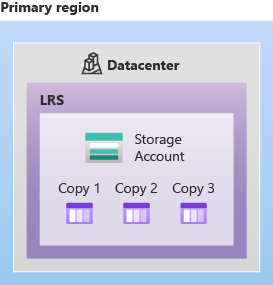
Diagrams courtesy of Microsoft Learn / Azure docs: storage/common/storage-redundancy
Northwind example
Northwind stores live order receipts in a zone-enabled region. It selects ZRS when keeping the service available through a single-zone failure matters and regional recovery is handled elsewhere. If its recovery design requires a second-region copy, it evaluates GZRS and a documented failover plan. For accidental deletion, it also enables appropriate data-protection features and tests restoration. ZRS and GZRS copy healthy or unhealthy changes; neither is a substitute for backup.
Common confusion
- Zone-redundant means copies across zones in one region; geo-redundant means copies in a second region. They solve different failure scopes.
- Durability (“copies are unlikely to be lost”) is different from availability (“clients can reach the data now”).
- RA means read access to the secondary endpoint. It is not a second writable production account.
- Choosing a region pair does not enable GRS or GZRS. The storage-account redundancy setting does.
Related
storage-account · storage-performance · blob-storage · azure-files · availability-zones · zone-redundant · azure-backup · northwind-traders-case-study
📘 Source: Microsoft Learn — Azure Storage redundancy, checked 2026-09-16.
Azure Blob Storage
What it is
Azure Blob Storage is Azure’s object storage service for unstructured data: images, documents, video, application logs, backups, and other files. It stores each item as a blob inside a container in a storage account. A blob is accessed by its endpoint and name, not mounted as a traditional disk by default.
Why it exists
Applications need cheap, massively scalable storage for binary/unstructured payloads that isn’t tied to a filesystem or a database schema. Blobs support trillions of objects and PB-scale, with tiered pricing.
Key ideas
- The practical hierarchy is storage account → container → blob. Slashes in a blob name can look like folders, but a normal blob namespace is flat unless you enable a hierarchical namespace for a supported scenario.
- Block blobs are the usual choice for documents and media. Append blobs are designed for append-heavy log-like data. Page blobs support random read/write patterns and are used for VHD scenarios such as unmanaged disks.
- Access tiers and lifecycle rules can move or remove data to manage cost. Changing a tier does not create a safety copy.
- Versioning, soft delete, snapshots, and immutability can help protect data from different kinds of mistakes. Select and test the controls that match the recovery requirement.
Northwind example
Northwind puts customer receipt images in an receipts container. Each receipt is a block blob whose name includes an order reference. The ordering app uses its workload identity to write new images; staff do not receive a shared storage key. Northwind uses lifecycle rules for older receipts and data-protection features for accidental deletion. The images are objects in Blob Storage, not files on the web server’s disk.
Common confusion
- A container is an organization and access boundary inside a storage account; it is not a Windows folder or an Azure resource group.
- Blob Storage can expose public access only when deliberately configured. A guessable URL is not an access-control design.
- Storage redundancy handles infrastructure copies. Object versioning, soft delete, immutability, and backup address different data-loss risks.
How it fits (diagram)
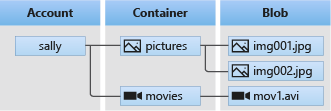
Diagrams courtesy of Microsoft Learn / Azure docs: storage/blobs/storage-blobs-introduction
Where it appears in the route
Start with storage-account and redundancy-lrs-zrs-grs, then use access-tier and storage-network-rule to design cost and access.
Related
storage-account · access-tier · storage-performance · azure-tables · azure-queues · immutable-storage · redundancy-lrs-zrs-grs · northwind-traders-case-study
📘 Source: Microsoft Learn — Introduction to Azure Blob Storage, checked 2026-09-16. Re-audit when Blob Storage resource types, access tiers, or authorization guidance changes.
Azure Queue storage
Canonical explanation
This legacy title is retained so existing links continue to work. Read Azure Queue Storage for the complete beginner explanation, Northwind example, delivery caveats, and current source record.
What it is
Azure Queue Storage holds messages that describe work waiting for a worker. A sender can add a small message and continue; a worker processes it later. This is called asynchronous processing.
Why it exists
A queue absorbs a temporary burst of work, such as “make a receipt” or “resize an image,” so the customer-facing application does not wait for the slow task to finish.
Key ideas
- A queue belongs to a storage account and holds messages up to 64 KB.
- A worker receives a message, processes it, and deletes it only after success. A visibility timeout can make an unfinished message available again for retry.
- Do not assume exactly-once or strict FIFO delivery. Workers must tolerate duplicate delivery and monitor repeated failures.
- Use Azure Service Bus when the requirement needs richer broker capabilities such as topics or sessions.
How it fits (diagram)
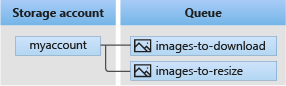
Diagrams courtesy of Microsoft Learn / Azure docs: storage/queues/storage-queues-introduction
Exam notes
- Queue Storage is for durable work messages, not a business-data archive.
- Receiving is not deleting: delete only after successful processing.
- See queue-storage for the full decision and implementation explanation.
Related
storage-account · azure-tables · blob-storage · queue-storage
📘 Source: Microsoft Learn — Azure Queue Storage
Shared Access Signature (SAS)
What it is
A shared access signature (SAS) is a signed token appended to an Azure Storage URL. It delegates only the resource, permissions, and time period encoded in the token, without giving the recipient the storage account key.
Why it exists
Use a SAS when a client needs direct, limited access to storage but does not otherwise have that permission. A SAS is a bearer token: anyone who obtains a valid URL can use it as allowed until it expires or is otherwise invalidated.
Types (compare)
- User delegation SAS — supported for Blob Storage (including Data Lake Storage endpoints), and signed using a Microsoft Entra user delegation key. Microsoft recommends it when possible because code need not hold an account key.
- Service SAS — signed with a storage account key and delegates access to a resource in one storage service: Blob, Queue, Table, or Azure Files.
- Account SAS — also signed with an account key, and can cover resources in one or more storage services and some service-level operations.
- Stored access policy — a reusable constraint set on a container, table, queue, or file share for a service SAS. It is not available for user delegation or account SAS.
What params a SAS URI carries
- Permissions, resource scope, start and expiry time, and optionally allowed IP address and protocol.
- A signature created from the issuing identity or account key. Azure Storage checks the parameters and signature on each request.
Revocation and containment
Azure Storage does not track every SAS token that has been generated, so an ad hoc SAS cannot simply be looked up and individually revoked. Plan for a leak before issuing one:
- Give the least possible permission to the fewest resources, require HTTPS, and use a short lifetime.
- A service SAS that uses a stored access policy can have that policy changed or removed to revoke its permissions.
- Regenerating the relevant storage account key invalidates service SAS and account SAS signed with that key, but may disrupt other clients. It does not invalidate a user delegation SAS.
- Monitor failures and unexpected access. For higher-risk operations, use an application service that authenticates, validates, and audits the request instead of handing out a SAS.
Northwind example
Northwind’s customer app asks its API for permission to upload one receipt. After authenticating the customer, the API issues a short-lived, HTTPS-only user delegation SAS allowing upload to that customer’s specific blob path. It does not issue read, delete, or account-wide permission. If the URL leaks, the recipient can upload during its lifetime, so Northwind investigates and replaces the token rather than assuming it can discover every copy of the URL.
How it fits (diagram)

Diagrams courtesy of Microsoft Learn / Azure docs: storage/common/storage-sas-overview
Exam notes
- A SAS is delegated, scoped access — and a bearer token.
- Prefer user delegation SAS when possible; it uses Entra credentials rather than an account key.
- Stored access policies can control service SAS only. Do not promise individual revocation for an ad hoc SAS.
- Short expiry, HTTPS, narrow scope, and least privilege reduce the damage from a leak.
Related
storage-access-keys · storage-account · storage-network-rule
📘 Source: Microsoft Learn — Sas Token
Immutable storage (WORM) for Azure Blob
What it is
Immutable storage makes blobs write-once, read-many (WORM): data can be created and read but cannot be modified or deleted for the configured period. It’s the Azure Storage compliance feature for regulatory retention (e.g., SEC 17a-4, FINRA, HIPAA).
Why it exists
Regulators require that certain records be stored unalterable and undeletable for a fixed time (to prevent tampering or malicious deletion). Immutability guarantees even a compromised admin account can’t purge the evidence during the retention window.
Key ideas
- Two forms of policy (applied at container or account-versioning level):
- Time-based retention — hold for N days; you can extend but NOT shorten/remove until expiry.
- Legal hold — no set duration; holds until explicitly cleared (applies to all blobs in scope).
- Modes:
- Governance — enabled/disabled by privileged users (still “live” admin overrides allowed with
Set-StorageBlobImmutabilityPolicy). - Compliance — irreversible; once locked, no one (even Microsoft) can reduce or remove it. Required to meet strict regulations.
- Governance — enabled/disabled by privileged users (still “live” admin overrides allowed with
- Works on top of blob versions/snapshots: blobs within scope can’t be overwritten/deleted until the policy lifts.
- Scope: container-level policy or account-level versioning immutability.
How it fits (diagram)
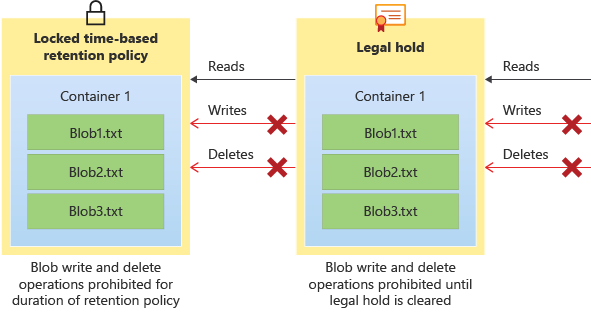
Diagrams courtesy of Microsoft Learn / Azure docs: storage/blobs/immutable-storage-overview
Exam notes
- WORM = immutable/unalterable during retention.
- Compliance-locked is bulletproof (cannot be undone); governance allows limited privileged overrides.
- Support via time-based retention and legal hold.
- Not for file shares by default — this is a blob (and account-versioning) capability.
Related
blob-storage · storage-account · access-tier
📘 Source: Microsoft Learn — Immutable Storage