AZ-104 · Configure & Manage Virtual Networks Concept map + module map for the networking path.
Core topology
Connectivity
Security
Name resolution
Load balancing & traffic
Route Tables & User-Defined Routes (UDR)
What it is
A route table is a collection of directions attached to a subnet. Each direction says, “for an address in this range, send traffic to this next place.” Azure supplies system routes automatically; directions you add are user-defined routes (UDRs).
Think of it as road signs for packets. A route decides where traffic goes next. It does not decide whether that traffic is safe, allowed, or authenticated.
Why it exists
Azure can route ordinary VNet, peered-VNet, and internet-bound traffic without a route table. A team adds UDRs when it needs a deliberate path—for example, to send a subnet’s outbound traffic to Azure Firewall for inspection, or to send spoke-to-spoke traffic through a hub.
How Azure chooses a route
- Azure combines applicable system routes, UDRs, and routes learned through BGP.
- It normally selects the route with the most-specific matching address prefix. For the same prefix, a UDR takes precedence over BGP, which takes precedence over a system route.
- Some Azure-managed system routes—for VNet, peering, and service-endpoint traffic—have special precedence. Do not assume every system route can be overridden; inspect the effective routes on the NIC when troubleshooting.
One route table can be associated with a subnet, and that table can be associated with multiple subnets. A table with no subnet association has no effect.
Common next hops
- Virtual appliance: an appliance private IP, such as a firewall or NVA. It must be able to forward the traffic; Azure does not turn an ordinary VM into a router automatically.
- Virtual network gateway: sends traffic to a gateway, commonly for a connected on-premises network.
- Internet: sends traffic toward the internet.
- None: drops traffic matching the prefix.
Azure also creates system routes for paths such as local VNet and peering traffic. They are not UDR next-hop choices you manually create.
Northwind example
Northwind Traders puts its ordering VMs in snet-orders. Maya associates a route table with that subnet and adds 0.0.0.0/0 → Virtual appliance: 10.10.1.4, the private address of Azure Firewall. Now ordinary internet-bound traffic goes to the firewall first. The firewall’s rules decide whether to allow it; an NSG and the app’s own authorization still have separate jobs.
This is called forced tunneling. It is useful only if the firewall route, forwarding configuration, and return path are designed together. A bad route can cut off the workload or create a routing loop.
How it fits
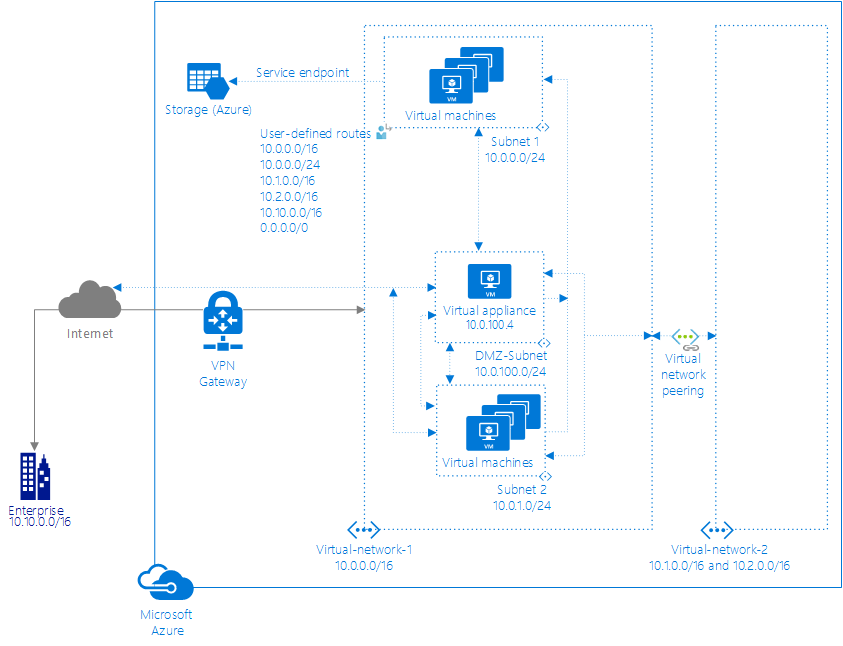
Diagrams courtesy of Microsoft Learn / Azure docs: virtual-network/virtual-networks-udr-overview
Customer VM (snet-app) ──► route table UDR: 0.0.0.0/0 next hop Azure Firewall
                                        │
                                        ▼
                              Azure Firewall (inspect/filter)
                                        │
                                   to internet
Avoid these mix-ups
- A route table chooses a path; an nsg filters network flows; rbac controls who may manage Azure resources. None replaces the others.
0.0.0.0/0means “all IPv4 destinations not matched by a more-specific route.” It is powerful and should be tested before association.- An appliance usually belongs in a different subnet from the workloads it serves. It needs IP forwarding enabled in Azure and may also need forwarding enabled in its operating system or appliance configuration.
Related
Home · subnet · vnet · bgp · azure-firewall · vnet-peering · network-watcher
Border Gateway Protocol (BGP)
What it is
Border Gateway Protocol (BGP) is the standard exterior routing protocol that exchanges routing information between autonomous systems (ASes). In Azure it’s how your on-premises edge and ExpressRoute/VPN infrastructural peers advertise routes to (and receive routes from) Azure networks.
Why it exists
Static routes need manual changes when a network changes. BGP lets connected networks announce the address prefixes they can reach and withdraw them when they cannot. This makes hybrid routing adaptable, but a correct route policy and a resilient physical design are still necessary for useful failover.
Key ideas
- Peers exchange reachability information. Azure learns on-premises prefixes, while the on-premises edge learns Azure prefixes. For ExpressRoute, BGP sessions run between the network edge and Microsoft enterprise edge routers; VPN Gateway can also use BGP.
- An autonomous system number (ASN) identifies the routing domain in BGP. Azure and the peer use configured ASNs; supported values and default behavior depend on the service and configuration, so do not memorize one private range as a universal Azure requirement.
- BGP is central to ExpressRoute and optional for some VPN Gateway designs. It is not required for simple VNet peering.
- Route selection is not one simple universal order. Prefix specificity, service route sources, user-defined routes, and gateway propagation interact. Inspect effective routes for the affected subnet and use the current Azure route-selection guidance for the exact scenario.
Key facts
- Advertising a default route (
0.0.0.0/0) on ExpressRoute private peering can route associated VNet traffic to the on-premises network. The corporate edge then needs a design for internet-bound and Azure platform traffic; test carefully before calling this forced tunneling safe. - BGP can withdraw or change routes after a path event, but successful failover also depends on redundant gateways, circuits, devices, routes, and application dependencies.
- Treat ASN values, prefix limits, and path attributes as configuration details to verify against the service documentation, not as a memorized magic number.
Northwind example
Northwind’s warehouse advertises 10.40.0.0/16 to Azure through its ExpressRoute BGP peer. Azure advertises the order VNet prefix back. When Northwind adds a second warehouse subnet, BGP can announce the new prefix without editing every VM route table. Before advertising a default route, Maya checks effective routes and confirms that required Azure services and internet egress still have a supported path. A BGP session alone does not prove a warehouse application can fail over.
How it fits
[on-premises routing domain] [Azure/provider routing domain]
│ BGP session (eBGP over IPsec/ER) │
│ advertise corp prefixes <────> │
│ receive VNet prefixes │
▼ ▼
on-prem network VNet routes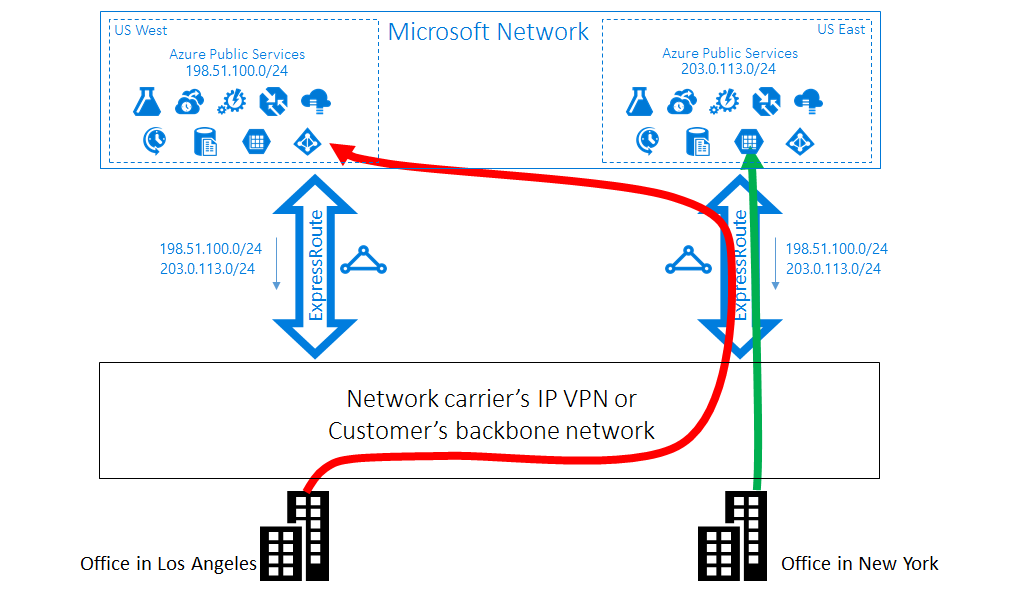 Diagram courtesy of Microsoft Learn / Azure docs: expressroute/expressroute-optimize-routing
Exam notes
- BGP is most relevant to hybrid connectivity such as ExpressRoute and dynamic VPN routing.
- It exchanges networks that are reachable; it does not replace network security or application identity.
- Use effective routes and current route-selection guidance rather than applying an oversimplified precedence rule to every scenario.
Related
Home · expressroute · vpn-gateway · route-table · virtual-wan
📘 Source: Microsoft Learn — Bgp
Azure Network Watcher
What it is
Azure Network Watcher is the regional diagnostics and monitoring service for Azure networking. It gives tools to inspect connectivity, packet flows, topology, and logs across your VNets and subnets.
Why it exists
When traffic “doesn’t work,” administrators need fast, visual answers: is the route right? is the NSG blocking? can VM A reach VM B? Network Watcher centralizes these connectivity/protocol diagnostics instead of you poking NIC/protocol state manually.
Key ideas (core tools)
- Topology — visual interactive graph of your VNet resources and their connections.
- IP Flow Verify — tests whether a packet from a source IP/port to a destination IP/port is allowed or denied, applying NSG rules + routes to explain the result.
- Next Hop — shows the next hop (and which route drove it) for a packet, great for debugging UDRs.
- Effective security rules — lists the applicable NSG rules for a NIC/subnet combined (classic Association + effective).
- VPN troubleshoot — diagnoses gateway/connection issues.
- Packet capture — captures traffic to/from a VM NIC (agent-free snapshot).
- Connection monitor — end-to-end, recurring connectivity/performance testing between resources.
- NSG/network flow logs — record allowed/denied flows for SIEM/NSG analysis.
How it fits
Enabled per region (one Network Watcher per region) and typically deployed automatically (one instance per region). Flows from VNets across many subnets are analyzed in one pane.
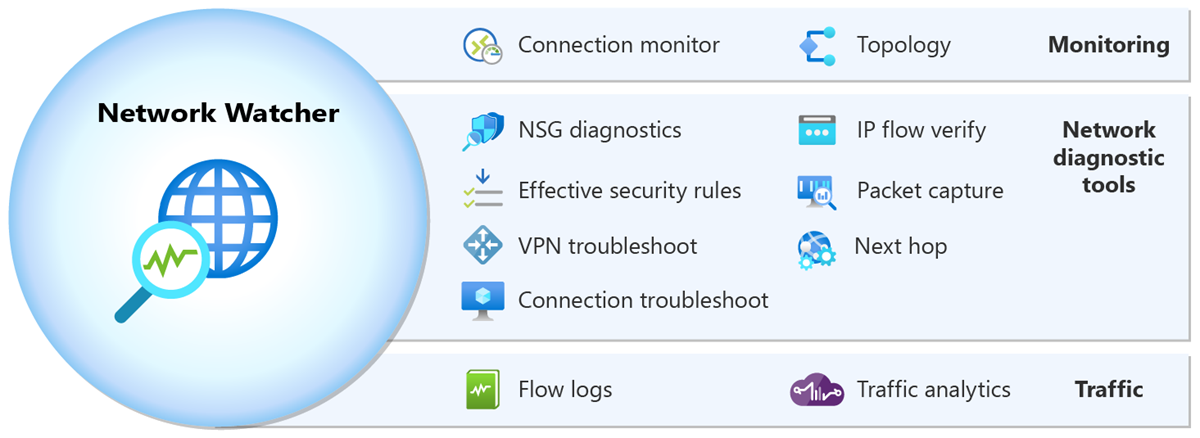
Diagrams courtesy of Microsoft Learn / Azure docs: network-watcher/network-watcher-monitoring-overview
Exam notes
- Network Watcher is regional — enable it in the region where your VNets live.
- Flow logs and some tools incur cost/are billed; baseline topology/IP flow verify tools are often free but check current billing docs.
- Use IP Flow Verify for “which NSG rule is blocking my traffic” exam scenarios; use Next Hop for route/diagnostic questions.
Related
Home · vnet · nsg · route-table · subnet
📘 Source: Microsoft Learn — Network Watcher
Virtual Network Peering
What it is
Virtual Network Peering (VNet peering) connects two virtual networks over Microsoft’s private backbone. It gives their resources a direct private network path, without a public-internet path or a VPN gateway between those two VNets.
Why it exists
Applications often span separate VNets for teams, tiers, regions, or subscriptions. Peering gives a direct path between them while preserving separate VNet boundaries and address spaces.
Key ideas
- Two links: both directions must exist and be connected. Creating only one leaves the peering in an initiated state.
- No overlap: the VNets cannot have overlapping address spaces.
- Local or global: regular peering connects VNets in one region; global peering connects across regions. Peering can cross subscriptions and Entra tenants when permissions and requirements are met.
- Non-transitive: A ↔ B and B ↔ C does not automatically create A ↔ C. Add a direct peering or deliberately route through a hub with UDRs and an appliance/gateway.
- Gateway transit: a spoke can use a remote VPN or ExpressRoute gateway in a hub for hybrid connectivity. A VNet using a remote gateway cannot also have its own gateway.
- Private path, separate controls: peering creates connectivity, not permission. NSGs, routes, firewalls, and application authorization still decide what traffic and actions are allowed.
How it fits
              [hub VNet]
  spokeA ─────┘    │    └──── spokeB
  peer links on each side only
  (non-transitive: spokeA needs a direct peering or designed hub route to reach spokeB)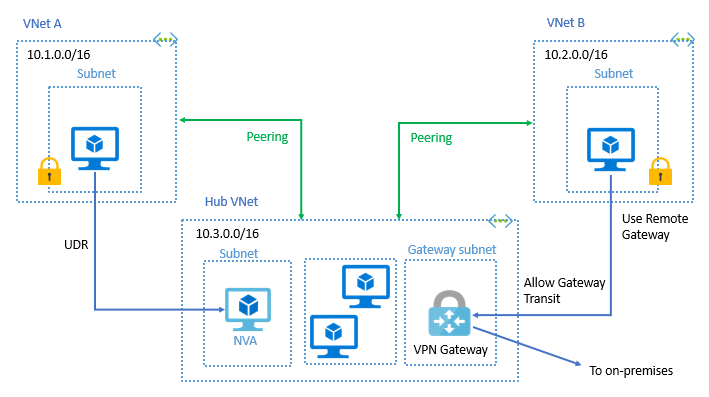
Diagrams courtesy of Microsoft Learn / Azure docs: virtual-network/virtual-network-peering-overview
Northwind example
Northwind peers its ordering VNet (spoke) with its shared-services VNet (hub), where a VPN gateway reaches the warehouse. The warehouse route works only after gateway transit is correctly configured. If the ordering VNet must reach a second spoke through a firewall in the hub, Maya adds intentional UDRs and tests both directions; peering by itself does not relay one spoke through another.
Cost and troubleshooting
Azure charges for data transferred across a peering connection. Check current pricing when cost matters. To troubleshoot, examine the NIC’s effective routes and use Network Watcher connectivity checks; an apparently connected peering can still be blocked by a route or NSG.
Related
Home · vnet · subnet · route-table · vpn-gateway · virtual-wan
Azure ExpressRoute
What it is
Azure ExpressRoute extends an on-premises network into Microsoft cloud services over a private provider connection rather than the public internet. The connection can use an any-to-any IP VPN network, point-to-point Ethernet, or a virtual cross-connection through a connectivity provider or colocation facility.
Why it exists
Organizations use ExpressRoute when their hybrid network needs private connectivity, predictable performance characteristics, provider integration, or a design with higher resiliency than a typical internet path. It can connect to Azure and, in appropriate scenarios, Microsoft 365 services. “Private” means the traffic does not travel over the public internet; it does not by itself mean every workload connection is encrypted or that every service is reachable.
Key ideas
- Private peering connects a VNet to on-premises networks. Microsoft peering connects to supported Microsoft cloud services, with specific routing and public-address requirements. Azure public peering is deprecated; use current service documentation for the exact supported services.
- BGP exchanges routes dynamically between the customer/provider edge and Microsoft. It tells each side which address prefixes are reachable; it does not authorize application users or automatically encrypt application protocols.
- A VNet connection normally uses an ExpressRoute virtual network gateway in
GatewaySubnet. Architecture features such as FastPath have exceptions, so validate the selected design rather than reducing every connection to one diagram. - Built-in circuit redundancy is valuable but bounded. A circuit has redundant connections to Microsoft edge routers at a peering location. For maximum resiliency, Microsoft recommends two circuits at different peering locations; one circuit does not eliminate provider, location, configuration, or application failures.
- Scope and cost depend on SKU and design. A circuit can link multiple VNets subject to documented limits and configuration. Premium adds broader global connectivity and larger limits; Local and billing models have separate behavior.
- Protect the data too. Apply TLS or another suitable encryption approach when data confidentiality requires it, because a private transport path is not a substitute for end-to-end application security.
Northwind example
Northwind’s warehouse network needs a reliable private route to the order-processing VNet. It orders an ExpressRoute circuit through a connectivity provider, configures private peering and BGP, and attaches the VNet through the appropriate gateway design. The team still uses HTTPS to its order API and Azure RBAC for authorization. For an outage plan, it evaluates a second circuit at a different peering location and tests the routes; it does not call one redundant circuit “disaster recovery.”
How it fits
[on-premises edge]  <— private provider connection —>  [ExpressRoute circuit/gateway]
       provider (Ethernet/MPLS)                         |  (GatewaySubnet)
                                                        ▼
                                                   [VNet subnets]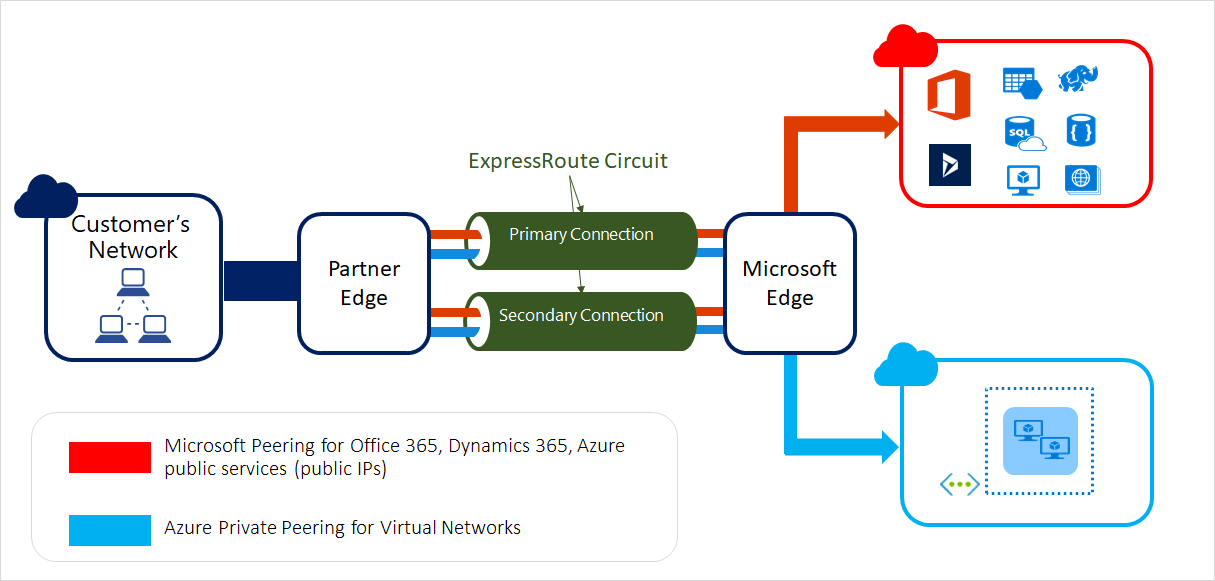
Diagrams courtesy of Microsoft Learn / Azure docs: expressroute/expressroute-introduction
Exam notes
- ExpressRoute is private provider connectivity; VPN Gateway uses encrypted tunnels over the public internet.
- BGP exchanges routes; it is not the same as IPsec or an application authorization system.
- Know private versus Microsoft peering, gateway architecture, and the difference between circuit redundancy and a full resiliency plan.
Related
Home · vpn-gateway · bgp · virtual-wan · vnet
📘 Source: Microsoft Learn — Expressroute
Azure Virtual WAN
What it is
Azure Virtual WAN is a managed hub-and-spoke networking service that consolidates branch (site-to-site), remote-user (point-to-site), VPN, and ExpressRoute connectivity into a set of virtual hubs Microsoft operates across regions. Each hub carries routing, and can host Azure Firewall and network security groups.
Why it exists
Traditional hub-and-spoke with separate VPN gateways, route tables, NSGs, and peering is complex to operate at scale across many regions. Virtual WAN gives one management plane for branch/remote/hybrid connectivity with global transit routing — administrators connect spokes to a hub instead of hand-managing peering and gateways per region.
Key ideas
- Virtual hubs — regional hubs that own routing, gateways (VPN Site-to-Site, Point-to-Site, ExpressRoute) and optional Azure Firewall.
- Global transit — spokes in different regions route through hubs; transitive routing (unlike plain peer non-transitivity) is handled by the hub/routing infrastructure.
- Branch-to-VNet, VNet-to-VNet, VNet-to-branch over the Microsoft backbone; no internet egress between them.
- Standard vs Basic tiers: Standard adds ExpressRoute, global transit, fireworks integration, etc.
- Routing is propagated automatically to spokes; you can override with custom route destinations (UDR style).
How it fits
[Branch A]─┐ ┌─[Spoke VNet 1]
[Branch B]─┼─► [Virtual Hub A] ┼─[Spoke VNet 2]
[Remote user] ├─(peer to hub)
[ER circuit] └─► transit to [Virtual Hub B] (other region)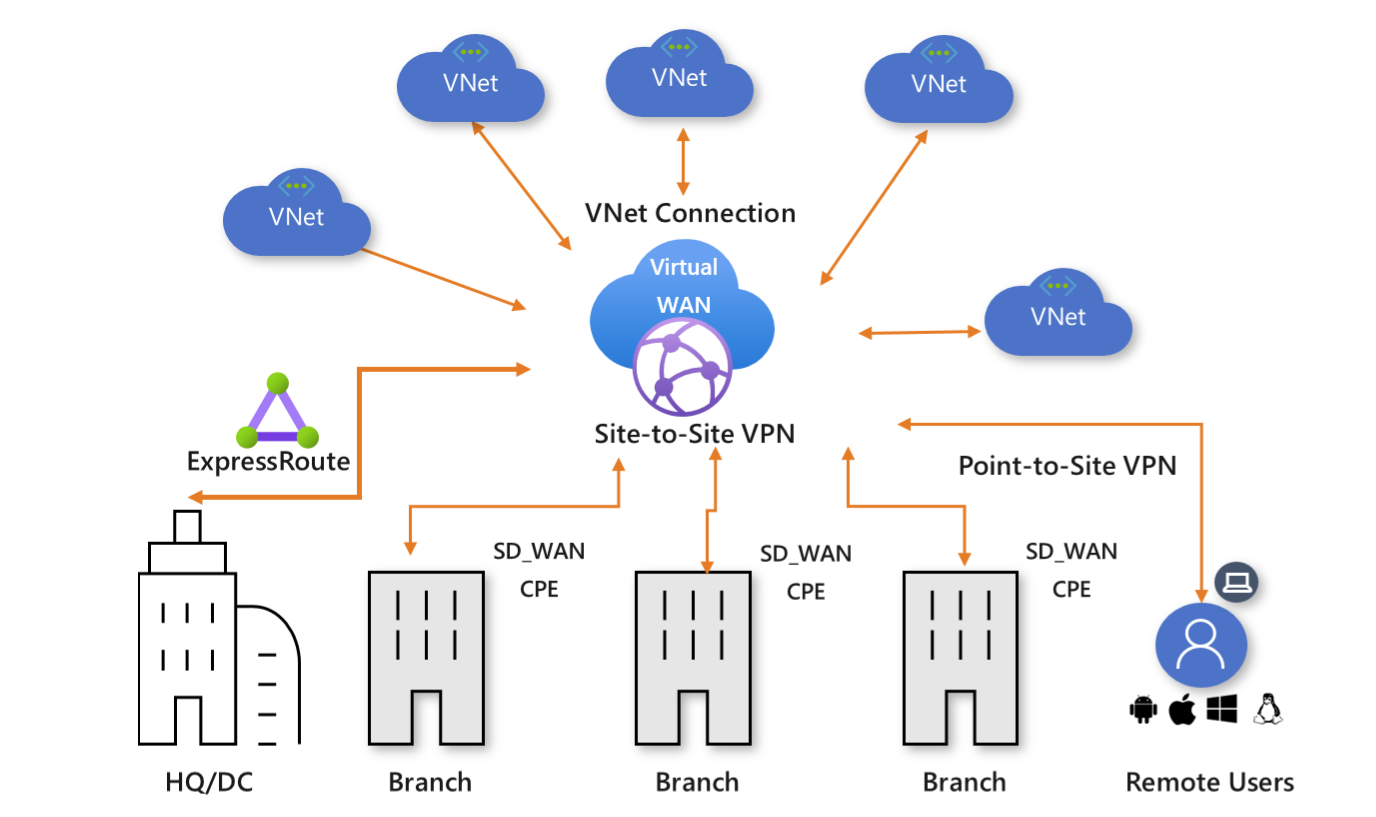 Diagram courtesy of Microsoft Learn / Azure docs: virtual-wan/virtual-wan-about
Exam notes
- Virtual WAN provides transitive connectivity via its hub, a contrast to basic vnet-peering.
- One Virtual WAN per region; standard tier required for ExpressRoute and global transit.
- Deleting a hub/vWAN removes underlying gateways; be careful with
Dependencyand billing.
Related
Home · vnet · vpn-gateway · expressroute · vnet-peering · azure-firewall
📘 Source: Microsoft Learn — Virtual Wan
Application Security Group (ASG)
What it is
An Application Security Group (ASG) is a logical label for VM network interfaces in one VNet. It lets an NSG rule refer to a role such as WebServers or DatabaseServers, rather than maintaining a list of individual IP addresses.
Why it exists
IP lists are brittle: a new VM or address change means another rule update. An ASG separates what the VM does from which address it has, so the NSG rule can remain stable as membership changes.
Key ideas
- An ASG contains VM network interfaces, not subnets and not people.
- An NSG rule can use an ASG as a source or destination. It is still the NSG rule—not the ASG—that allows or denies the flow.
- A NIC can belong to multiple ASGs, up to Azure limits. All NICs in one ASG must be in the same VNet.
- If an ASG is both source and destination in an NSG rule, the source and destination ASGs must be in the same VNet.
Northwind example
Northwind places the web VM NICs in AsgWeb, application VM NICs in AsgApp, and database VM NICs in AsgDb. Its NSG allows HTTPS from AsgWeb to AsgApp, and the database port only from AsgApp to AsgDb. Adding a new app VM means adding its NIC to AsgApp; the existing NSG rules apply without rewriting IP lists.
Rule example
priority 100  source: Source=ASG WebServers  dest=ASG AppServers  allow TCP 443
priority 200  source: Source=ASG AppServers  dest=ASG AppServers  deny  all     (isolate tier)
How it fits
NICs tagged into Web and DB ASGs; an NSG associated with the subnet references them:
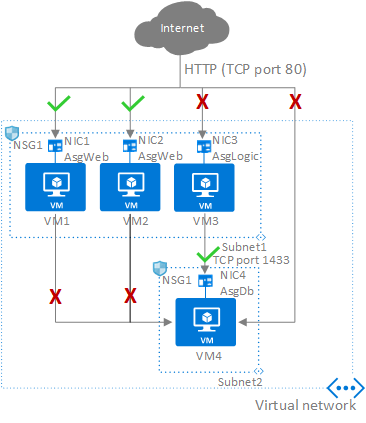
Diagrams courtesy of Microsoft Learn / Azure docs: virtual-network/application-security-groups
Exam notes
- ASG = NIC membership by role; it is not an NSG replacement.
- NSG’s “source/destination” can be an ASG, a service tag, or an IP/CIDR.
- Grouping by application tier is the canonical use case; rules become portable across IP changes.
Related
Azure Firewall
What it is
Azure Firewall is a managed, stateful network firewall service for Azure workloads. It can inspect both traffic entering or leaving a network (north-south) and traffic moving between network segments (east-west), then allow or deny it according to configured rules.
Why it exists
Network security groups protect individual subnets or network interfaces. Azure Firewall gives a team a central inspection point and shared rule policy when traffic must be routed through it. It can complement NSGs; the two do not replace one another automatically.
Key ideas
- Network rules use IP addresses, protocols, and ports. Application rules use fully qualified domain names (FQDNs) for supported application traffic. NAT rules can map inbound traffic to a private destination.
- A Firewall Policy holds reusable rule collections and configuration that can be applied to one or more firewalls. It makes shared governance clearer than maintaining unrelated rules in each deployment.
- Azure Firewall has Basic, Standard, and Premium SKUs. Standard offers L3–L7 filtering and Microsoft threat-intelligence feeds. Premium adds capabilities such as signature-based intrusion detection and prevention. Select features from the current SKU documentation rather than assuming every firewall includes Premium inspection.
- User-defined routes can send selected traffic to the firewall for inspection. This is a routing design choice: a rule cannot inspect traffic that never reaches the firewall.
- Azure Firewall can run in virtual-network and Virtual WAN secure-hub designs. Its exact subnet, public-IP, availability-zone, and capacity configuration depends on the chosen deployment design and SKU.
How it fits
[VM/app] ──selected UDR──► [Azure Firewall] ──► [allowed destination]
                              │  Application / network / NAT rules
                              ▼
                           logging and alerting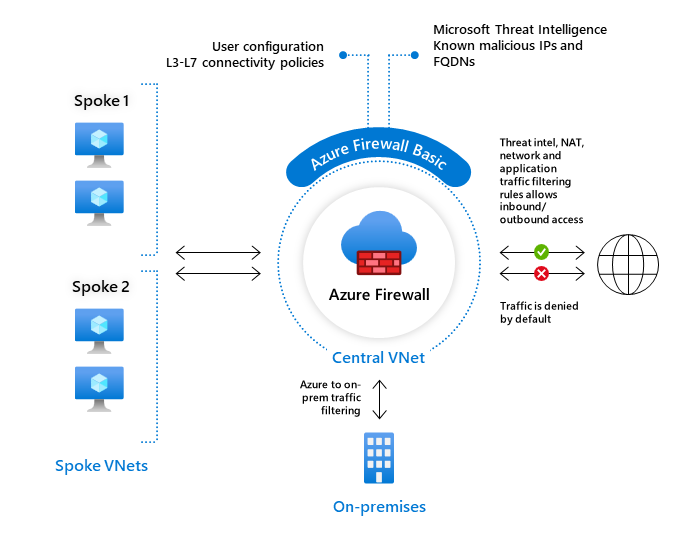
Diagrams courtesy of Microsoft Learn / Azure docs: firewall/overview
Northwind example
Maya routes Northwind’s application subnet outbound traffic through Azure Firewall. An application rule permits the ordering service to reach only its approved payment-provider FQDN, while network rules control other permitted IP-and-port paths. The team reviews firewall logs when checkout fails. It does not assume the firewall can protect a workload that has a direct route around it, or that an allow rule proves the remote service is safe.
Azure Firewall, NSG, and WAF
| Service | Primary boundary |
|---|---|
| Azure Firewall | Central network and application traffic inspection and control. |
| [[nsg | Network security group]] |
| Web Application Firewall | HTTP(S) web-attack protection for supported web entry points. |
Use the services according to traffic path and threat model. They can work together.
Common confusion
- Azure Firewall is stateful; it does not make NSGs “stateless.” NSGs are also stateful, but they operate at a different scope and feature set.
- Threat intelligence and advanced inspection do not remove the need for least privilege, patching, identity controls, and application security.
- A firewall rule governs network traffic, not whether a caller is authorized to read a specific order or customer record.
Related
Home · nsg · route-table · virtual-wan · ddos-protection · vnet
Sources and re-audit
- Microsoft Learn — What is Azure Firewall?, checked 2026-09-16.
Azure DDoS Protection
What it is
Azure DDoS Protection helps defend internet-reachable Azure workloads from a distributed denial-of-service (DDoS) attack: a flood of traffic intended to exhaust the service so legitimate customers cannot use it. Its enhanced protection operates at network layers 3 and 4; it is not a web-request filter.
Why it exists
Any public endpoint can be a target. Azure provides default infrastructure-level protection against common network-layer attacks, and Azure DDoS Protection adds enhanced, workload-aware mitigation and operational signals for supported public workloads. For an HTTP(S) attack at layer 7, add a web application firewall and resilient application design.
Key ideas
- Default infrastructure protection applies to Azure services and defends against common network-layer attacks. It is not the same thing as enabling an enhanced DDoS Protection offering for a workload.
- DDoS Network Protection is enabled for a VNet and protects the eligible public resources in that VNet. A single plan can be used across multiple subscriptions in a tenant.
- DDoS IP Protection is enabled per public IP resource and uses a pay-per-protected-IP model. It shares core mitigation engineering with Network Protection but differs in some value-added services.
- Adaptive mitigation and evidence — enhanced protection learns normal traffic patterns, applies mitigation when a threshold is exceeded, and exposes attack metrics, alerts, and reports.
- Layering is intentional. DDoS Protection limits network-layer floods; WAF handles web-request patterns; Azure Firewall and NSGs control allowed traffic paths. None removes the need for capacity, redundancy, application security, and incident response.
Northwind example
Northwind exposes its customer storefront through a public entry point. Maya enables the appropriate DDoS Protection model for its VNet-hosted public workload, configures Azure Monitor alerts, and rehearses the incident response path. A traffic flood is mitigated at the network layer, while the storefront’s WAF separately blocks suspicious HTTP requests such as an attempted SQL-injection pattern. Neither control proves the app can handle every surge, so Northwind also uses scaling and resilient application design.
How it fits
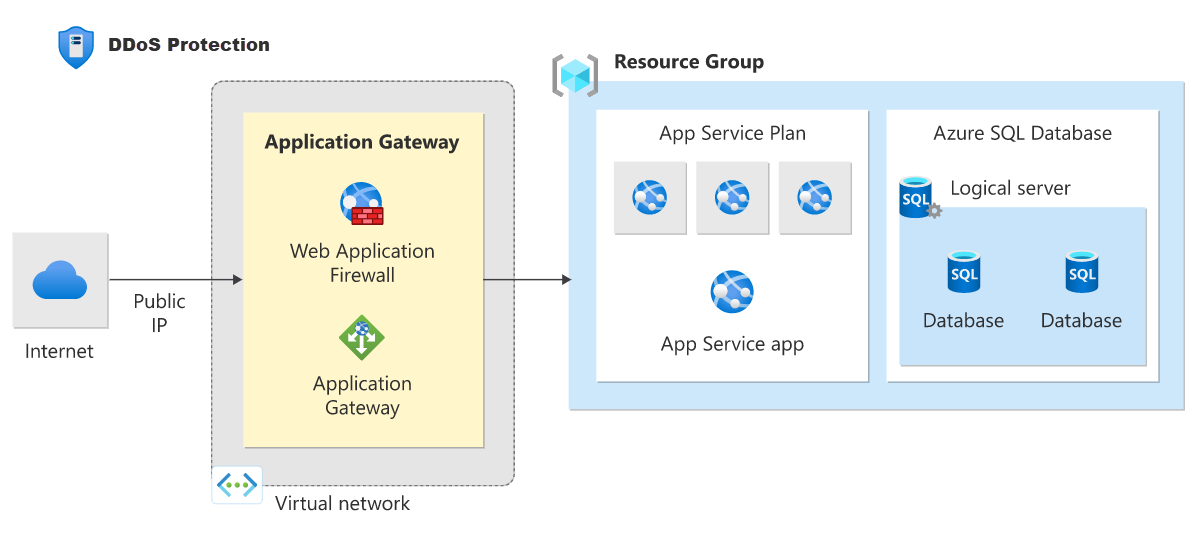
Diagrams courtesy of Microsoft Learn / Azure docs: ddos-protection/ddos-protection-overview
[Attacker traffic] ──► [Azure DDoS edge scrubbing] ──► [Public IP]
                              │                          │
                    (network-layer mitigation)       [protected workload]
Exam notes
- DDoS Protection addresses network-layer availability attacks, not application-layer attack logic.
- Network Protection is VNet-scoped; IP Protection is enabled on a public IP resource.
- Pair it with WAF, firewall/NSG rules, application resilience, and an incident plan.
Related
Home · azure-firewall · vnet · nsg
Azure Private DNS
What it is
Azure Private DNS hosts DNS records that linked virtual networks can resolve. A private DNS zone gives internal workloads a meaningful name for a private address—for example, a Private Endpoint address—without putting that name and address into public DNS.
Why it exists
Workloads need stable internal names, and Private Endpoints need names that resolve to their private addresses from the right networks. Private DNS provides that naming layer without operating DNS servers just to host the zone.
Key ideas
- Private DNS zone: a zone that holds internal DNS records. Link a VNet to let resources in that VNet resolve the zone’s records.
- Virtual-network link: the connection between the VNet and the zone. Linked VNets can resolve all records in that zone, even if the VNets are not peered; network connectivity for the resulting traffic is a separate requirement.
- Autoregistration: when enabled on a VNet link, Azure automatically creates and updates A records for VMs in that VNet as they are created, changed, or deleted. A VNet can have autoregistration enabled for only one private zone.
- Private Endpoint pattern: a service-specific
privatelinkzone maps the service name to the endpoint’s private IP. Follow the service’s documented zone name rather than inventing a suffix. - Split horizon: a public and private zone can share a name and return different answers inside and outside the VNet.
How it fits
[VM in VNet A] ──► [Private DNS zone  privatelink.database.windows.net]
                       linked to VNet A & B
                       A record → private IP of the DB private endpoint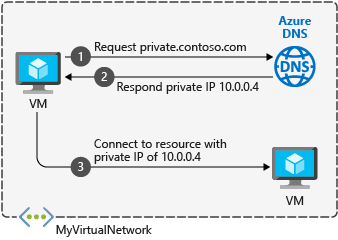
Diagrams courtesy of Microsoft Learn / Azure docs: dns/private-dns-overview
Northwind example
Northwind gives its private database endpoint a Private DNS name. The ordering VNet and reporting VNet are both linked to the relevant private zone, so their workloads resolve the database name to its private endpoint address. That DNS answer does not by itself create a usable network path or grant database access: routing, network rules, and database authorization still apply.
Avoid these mix-ups
- Public Azure DNS answers internet DNS queries; Private DNS answers through linked VNets.
- Private DNS is a naming service, not a network tunnel and not an access-control service.
- For name resolution between Azure and on-premises networks, use a supported forwarding design such as Azure DNS Private Resolver; VNet linking alone does not configure on-premises DNS.
Related
Home · azure-dns · vnet · subnet
Azure Load Balancer
What it is
Azure Load Balancer is a Layer 4 network load balancer. It distributes TCP, UDP, and related transport-level traffic from a frontend IP to healthy backend instances such as VMs or VM scale-set instances. It sees network connections, not web concepts such as URL paths or HTTP headers.
Why it exists
A single VM is a single point of failure and a capacity ceiling. Load Balancer spreads traffic and handles failover/health so a collection of backends appears as one reliable service, without adding latency (it’s a pass-through forwarder).
Key ideas
- A public load balancer accepts traffic at a public frontend IP. An internal load balancer exposes a private frontend IP inside a VNet or connected network. Public and internal describe the frontend reachability, not whether the backend VMs have public IPs.
- A frontend IP, backend pool, health probe, and load-balancing rule work together. The probe decides which backends are eligible; the rule maps matching connection traffic to that healthy pool.
- A failed health probe removes a backend from new traffic. It does not repair the application, its data, or every existing user connection.
- Load Balancer operates at Layer 4. For HTTP(S)-aware functions such as path routing, host routing, TLS termination, or web-application firewall rules, use Application Gateway instead.
- Load Balancer features depend on the SKU and configuration. Choose current supported options for the target region rather than carrying historical Basic-versus-Standard assumptions into a new design.
Northwind example
Northwind runs two VM instances of its legacy order connector. An internal Load Balancer has a private frontend address and sends TCP traffic to the healthy connector instance. Its health probe stops sending new connections to an instance that fails the check. The load balancer helps the two instances appear as one network endpoint; Northwind still needs shared data, secure rules, monitoring, and a plan for the database.
Common confusion
- Load Balancer distributes connections; it is not a web application firewall, DNS service, or global traffic manager.
- A public frontend makes that frontend reachable from the internet only when the surrounding network and security configuration permits it.
- A healthy TCP probe only proves the probe’s condition. It does not prove a customer checkout succeeds.
How it fits
[Internet] ──► [LB public frontend 20.x.x.x]
                      │  health probe + rule
              ┌───────┼────────┐
           [VM1]   [VM2]   [VM3]   (backend pool, TCP 443)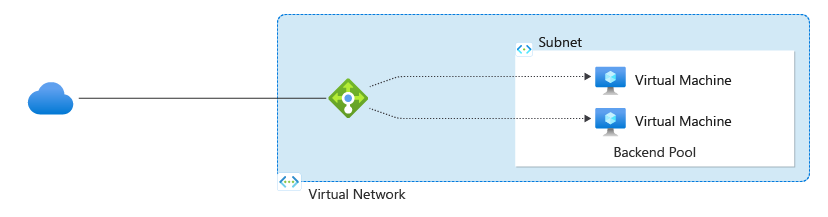
Diagrams courtesy of Microsoft Learn / Azure docs: load-balancer/load-balancer-overview
Design check
Decide whether clients are public or private, which protocol and port must be distributed, what health condition represents a usable backend, how outbound traffic is designed, and whether the app needs Layer 7 routing instead. Test failure behavior before calling the workload highly available.
Related
application-gateway · traffic-manager · azure-front-door · vnet · subnet · nsg · virtual-machine-scale-set · northwind-traders-case-study
📘 Source: Microsoft Learn — What is Azure Load Balancer?, checked 2026-09-16.
Azure Application Gateway
What it is
Azure Application Gateway is a regional Layer 7 load balancer for web traffic. It examines HTTP(S) request details—such as the host name and URL path—to choose a backend. It can also terminate TLS, keep a user on the same backend with cookie affinity, and integrate with a Web Application Firewall (WAF).
Why it exists
A web application may need /api to go to one backend and /images to another. A Layer 4 Load Balancer sees addresses and ports; Application Gateway can use the web request itself to make that decision.
Key ideas
- A listener receives a web request. A routing rule maps it to a backend pool; health probes prevent the gateway from sending requests to an unhealthy backend.
- It supports path-based routing, multiple-site/host routing, redirects, URL and header rewrites, TLS termination, end-to-end TLS, and cookie-based affinity.
- Current SKUs are Standard_v2 and WAF_v2. WAF_v2 adds web-attack protection using managed and custom rules. WAF reduces common HTTP(S) attack exposure; it does not replace secure application code or identity authorization.
- A gateway requires its own dedicated virtual-network subnet. It can expose a public or internal frontend, according to the design.
- Autoscaling, zone redundancy, connection draining, and Application Gateway Ingress Controller integration for AKS are available capabilities of the current platform. Choose and test them against workload requirements.
How it fits
[Internet]
   │  HTTPS → SSL offload + WAF
   ▼
[App Gateway frontend]
   │  URL-path rules
   ├── /api/*  → backend pool A (VMs)
   └── /*      → backend pool B (App Service)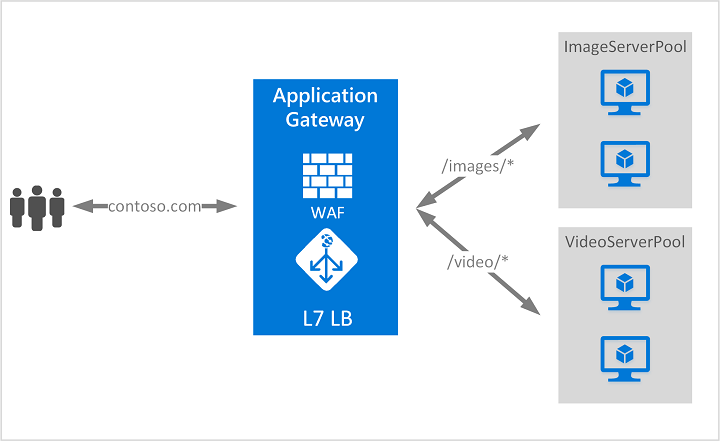
Diagrams courtesy of Microsoft Learn / Azure docs: application-gateway/overview
Northwind example
Northwind uses Application Gateway in its production region. A listener receives orders.northwind.example; a path rule sends /api/ to the ordering API and /images/ to the image service. Health probes remove a failed API instance from rotation. Maya enables WAF rules and investigates their logs before blocking a legitimate partner request with an overbroad custom rule.
Application Gateway versus other delivery services
| Requirement | Start by considering |
|---|---|
| Regional, HTTP(S), path or host routing to web backends | Application Gateway |
| Global edge delivery and routing for internet-facing web content | [[azure-front-door |
| Regional TCP or UDP load balancing | [[load-balancer |
| DNS-based global routing without HTTP request processing | [[traffic-manager |
Common confusion
- WAF is an optional security capability on the WAF_v2 SKU; it is not the same thing as Application Gateway itself.
- Application Gateway v1 retired on 2026-04-28. Design and migrate with the v2 family rather than using v1 guidance.
- A healthy HTTP probe does not prove every authenticated customer journey works. Pair it with application telemetry and suitable end-to-end tests.
Related
Home · load-balancer · traffic-manager · azure-front-door · vnet · subnet
Sources and re-audit
- Microsoft Learn — What is Azure Application Gateway?, checked 2026-09-16.
Azure Front Door
What it is
Azure Front Door is a global, Layer 7 content-delivery and web-routing service. It accepts internet-facing HTTP(S) traffic at Microsoft’s edge network, then uses configured routes and origin health to deliver static or dynamic content. It can provide caching, TLS termination, and a Web Application Firewall (WAF).
Why it exists
Global web applications benefit when users connect to a nearby edge point and static content can be served without every request crossing the world to an origin. Front Door also provides a single global entry point that can route around an unhealthy origin.
Key ideas
- A profile exposes endpoints and routes. A route selects an origin group and origins, while health probes help Front Door avoid unhealthy origins.
- Front Door can route by host and path, terminate TLS at the edge, manage certificates, and use rules at the edge. It supports both static caching and dynamic content delivery.
- A WAF policy can be attached to protect web traffic. It complements—not replaces—application validation, authentication, authorization, and monitoring.
- Front Door can use Private Link for supported private-origin designs. Confirm tier, origin type, and network requirements before treating an origin as private.
- Standard and Premium feature sets differ. Use the current tier comparison for a design or price decision instead of assuming a feature exists in every tier.
How it fits
[users]  →  [Azure Front Door edge (global anycast)]
                │  L7 + WAF + SSL + caching
                │  configured routes + origin health
        ┌───────┴────────┐
   [origin A region] [origin B region]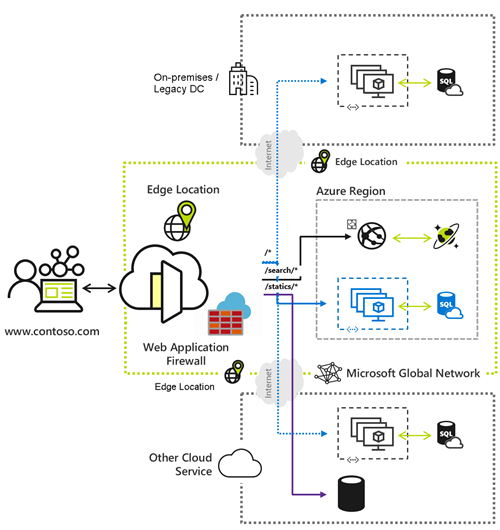
Diagrams courtesy of Microsoft Learn / Azure docs: frontdoor/front-door-overview
Northwind example
Northwind has public ordering origins in two regions. Front Door accepts customer traffic at an edge location, caches suitable public product images, and routes dynamic checkout traffic to a healthy origin according to its configured route and priority/weight design. If a health probe marks one origin unhealthy, Front Door can stop sending that route’s traffic there. The order database remains protected by its own private network, identity, and data controls; Front Door does not make the entire workload globally resilient by itself.
Front Door versus other delivery services
| Requirement | Start by considering |
|---|---|
| Global, internet-facing HTTP(S) delivery, routing, and optional caching | Azure Front Door |
| Regional Layer 7 routing inside or close to a virtual network | [[application-gateway |
| Global DNS response routing without proxying each HTTP request | [[traffic-manager |
| Regional Layer 4 TCP or UDP balancing | [[load-balancer |
These services can appear in the same architecture. Pick each from the traffic path and failure boundary it must control.
Common confusion
- Front Door is a proxy service for web traffic; it is not simply a DNS record or a generic load balancer for arbitrary TCP/UDP workloads.
- Caching requires deliberate cache rules and suitable content. Do not cache personalized or sensitive responses without understanding the consequences.
- A successful edge response does not prove every origin dependency or authenticated operation is healthy.
Related
Home · traffic-manager · application-gateway · load-balancer · azure-dns · azure-firewall
Sources and re-audit
- Microsoft Learn — What is Azure Front Door?, checked 2026-09-16.