AZ-104 Compute
Deploy & manage Azure compute resources
VM
Azure managed disks
What it is
A managed disk is a block-level storage volume Azure manages for an Azure VM. It is the cloud equivalent of a server’s virtual hard drive. You choose its type and size; Azure manages the underlying storage infrastructure.
Why it exists
VMs need persistent boot and application-data storage without requiring the team to operate storage accounts for each virtual hard disk. Managed disks separate the VM’s compute lifetime from its persistent disks and provide several performance and resilience options.
Key ideas
- Disk types: Ultra Disk, Premium SSD v2, Premium SSD, Standard SSD, and Standard HDD offer different performance and cost characteristics. Choose based on measured workload needs, not the disk label alone.
- OS disk: every VM has one boot disk. Keep the operating system there; put application data on separate data disks when that improves recovery, maintenance, or performance isolation.
- Data disks: persistent managed disks attached to a VM for applications and data. The VM size constrains how many can attach and which types it supports.
- Temporary disk: most VMs also have local temporary storage, which is not a managed disk. It can lose data during maintenance, redeployment, or a stop operation; use it only for disposable items such as page files, swap, or
tempdbwhere appropriate. - Ephemeral OS disk: stores the OS on local VM storage for supported designs. It is useful for disposable, stateless fleets, but not for a VM whose OS state must survive host events.
- Snapshots and images: snapshots copy a disk at a point in time; generalized images are blueprints for creating VMs. Neither automatically replaces a tested backup plan.
- Resilience: managed disks offer locally redundant and zone-redundant options where supported. Storage redundancy protects disk copies, while application availability still requires an appropriate compute and recovery design.
Northwind example
Northwind runs its ordering application on a VM with one OS disk and separate data disks for application files. It uses temporary storage only for disposable cache. When Luis needs to test a risky disk change, Maya creates a snapshot and plans how to create a replacement disk if needed. For routine recovery, the team uses Azure Backup and verifies restores; a single ad-hoc snapshot is not its disaster-recovery plan.
How it fits (diagram)
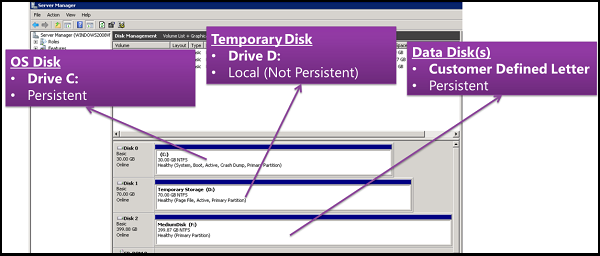
Diagrams courtesy of Microsoft Learn / Azure docs: virtual-machines/managed-disks-overview
Exam notes
- A snapshot copies one managed disk. It does not coordinate a multi-disk database or application by itself.
- Temporary and ephemeral storage are not a safe location for persistent business data.
- Managed-disk encryption options include server-side encryption, Azure Disk Encryption, and encryption at host; choose the control required by the design.
Related
Path MOC · azure-vm · vm-snapshot · availability-set · virtual-machine-scale-set
Availability
Availability set
What it is
An availability set is a logical group for two or more VMs that reduces the chance that related VMs fail or restart together. Azure spreads the VMs across fault domains and update domains inside a region. It is especially useful in a region that does not support availability zones, but it has less isolation than zones.
Why it exists
A single VM sits on one physical host — any host/rack failure or Azure patch cycle could kill it. Availability sets arrange VMs across independent failure boundaries for 99.95% service-level availability, without needing multiple regions.
Key ideas
- A fault domain is a group of infrastructure that can share a power source and network switch. Spreading VMs reduces the risk of one physical issue taking every copy down.
- An update domain is a group that Azure can restart together during planned maintenance. Azure works through update domains rather than intentionally restarting all of them at once.
- Use at least two functioning application instances and a way to send clients to a healthy instance. The availability set supplies placement; it does not route traffic, replicate data, or fix application bugs.
- An availability set works within a region and can still be affected by a datacenter-level failure. Availability zones provide a stronger physical-fault boundary when supported.
Northwind example
In a region without availability zones, Northwind places two warehouse connector VMs in one availability set and uses a health-aware internal load-balancing design. During planned maintenance, one update domain can restart while the other connector remains available. If the connector database is a single point of failure, the availability set does not solve that separate problem.
Common confusion
- An availability set is not an auto-scaling group. It does not add VMs when demand rises.
- It is not a backup or disaster-recovery solution for a full regional outage.
- You cannot make one VM highly available merely by naming or attaching it to an availability set; the application needs multiple usable instances.
How it fits (diagram)
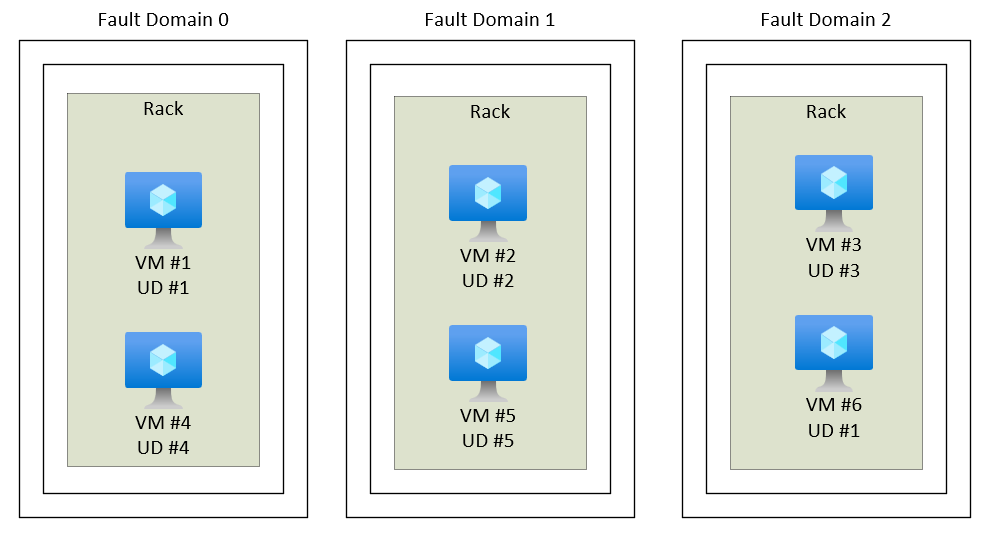
Diagrams courtesy of Microsoft Learn / Azure docs: virtual-machines/availability-set-overview
When to choose it
Choose an availability set for compatible VM workloads that need in-region fault and maintenance separation where zones are not the right or supported choice. For new high-availability VM workloads, evaluate a flexible scale set and availability zones as well. Confirm current SLA terms separately from the design pattern.
Related
azure-vm · availability-zones · virtual-machine-scale-set · load-balancer · northwind-traders-case-study
📘 Source: Microsoft Learn — Availability sets overview, checked 2026-09-16.
Availability zones
What it is
An availability zone is a physically separate group of one or more datacenters inside one Azure region. Zones have independent power, cooling, and networking. Think of a region as a city-sized service area and zones as separate, well-connected buildings in that area: a serious problem at one building need not stop the others.
Many, but not all, Azure regions have availability zones. A zone-enabled region commonly exposes logical labels such as 1, 2, and 3. Those labels are not a global street address: the same label can map to a different physical zone in another subscription.

Microsoft diagram: What are availability zones?
Why it exists
A single virtual machine or data copy can fail with the datacenter that hosts it. Spreading independently usable parts of a workload across two or more zones reduces that single-datacenter risk while keeping the workload in one region. It does not protect against a whole-region outage, a bad software release, deleted data, or an incorrectly configured identity.
How it works
Azure services support zones in one of three ways:
- A zonal resource goes into one zone you select. It is isolated from other zones but is not, by itself, resilient to its own zone failing.
- A zone-redundant resource is distributed or replicated across multiple zones by the Azure service. The service manages the cross-zone placement and failover.
- A regional (nonzonal) resource has no zone choice. Azure places it within the region; do not assume it survives a zone failure.
For zonal resources, the customer must build the pattern: multiple instances in different zones, a way to route traffic to a healthy instance, and a plan for state and data. The exact choices depend on the service and its available SKUs. Check the service reliability guide and region support before treating a design as zone-resilient.
Northwind example
Northwind runs two copies of its ordering application in one zone-enabled region: one VM in zone 1 and another in zone 2. A load balancer sends shoppers only to the healthy copy. Its order data uses zone-redundant storage. If zone 1 loses power, the zone-2 application and the replicated data can continue serving orders.
This is still a single-region design. If the whole region is unavailable, Northwind needs a separate multi-region recovery design, plus backups for accidental deletion or corruption.
Compare the close terms
| Term | Protects mainly against | What you must remember |
|---|---|---|
| Availability zone | A failure affecting one zone | It is a physical-fault boundary within a region. |
| zone-redundant | A single-zone failure | Azure spreads a supported service across zones. |
| availability-set | Some hardware and planned-maintenance failures within a datacenter | It is not a substitute for cross-zone placement. |
| Region pair or multi-region design | A regional outage | It requires a separate design and failover plan. |
| Backup | Deleted, corrupted, or historical data | Replication does not undo a bad write. |
Tradeoffs and failure modes
- Cross-zone traffic, supported SKUs, and replicated components can change cost or latency; test the actual workload.
- Putting every component in different zones can still fail if the database, DNS, credentials, or traffic-routing layer is a single point of failure.
- A one-zone VM is zonal, not highly available. A region that has zones does not make every deployed resource zone-resilient automatically.
- Zone numbers should not be compared across subscriptions without checking the subscription-specific mapping.
Where it appears in the route
Start with AZ-900 architecture. Then use AZ-104 compute to choose service-specific resiliency settings.
Sources and re-audit
- Microsoft Learn — What are availability zones?, checked 2026-09-16.
- Microsoft Learn — Azure reliability guides by service, checked 2026-09-16.
Related
zone-redundant · azure-region · availability-set · virtual-machine-scale-set · redundancy-lrs-zrs-grs · azure-backup
Virtual Machine Scale Sets (VMSS)
What it is
A Virtual Machine Scale Set (VMSS) manages a group of virtual-machine instances as one application fleet. It can create, configure, update, and automatically add or remove instances as demand changes. A scale set normally sits behind a traffic-distribution design such as Azure Load Balancer or Application Gateway.
Why it exists
Individually managing dozens of identical VMs is impossible to scale — patching, load distribution, and right-sizing would be manual. Scale sets give automatic scale-out/in (by metric/CPU/time), homogeneity, and fleet-level manageability.
Key ideas
- Scale out adds instances; scale in removes them. Scale up changes the size of an instance. Horizontal and vertical scaling solve different capacity problems.
- Autoscale can respond to a metric or schedule within a configured minimum and maximum. It is not magic forecasting: choose a relevant signal, leave time for new VMs to start, and test the rules.
- Scale sets support orchestration modes. The selected mode affects available features and cannot be changed after creation, so choose it deliberately.
- Multiple instances improve application resilience only when traffic reaches healthy instances and the application handles state correctly. A scale set can use fault domains or availability zones according to its configuration.
- Treat instances as replaceable. Keep durable state in an appropriate managed data service or disk design, not only on an instance’s temporary local storage.
Northwind example
Northwind’s public ordering front end becomes busy at lunchtime. A scale set starts with two healthy instances behind a load balancer, adds instances when tested demand metrics cross a threshold, and removes excess instances later. Each new instance comes from the same reviewed configuration and reads order data from shared storage. If Northwind stored the only copy of an order on one instance’s local disk, scale-in or a failure could lose it.
Common confusion
- A scale set is not a single VM with more CPU. It manages several instances.
- Autoscale does not protect a one-instance database or a dependency outside the scale set.
- A load balancer distributes traffic; it does not make unhealthy application code healthy. Health probes and application behavior matter.
How it fits (diagram)
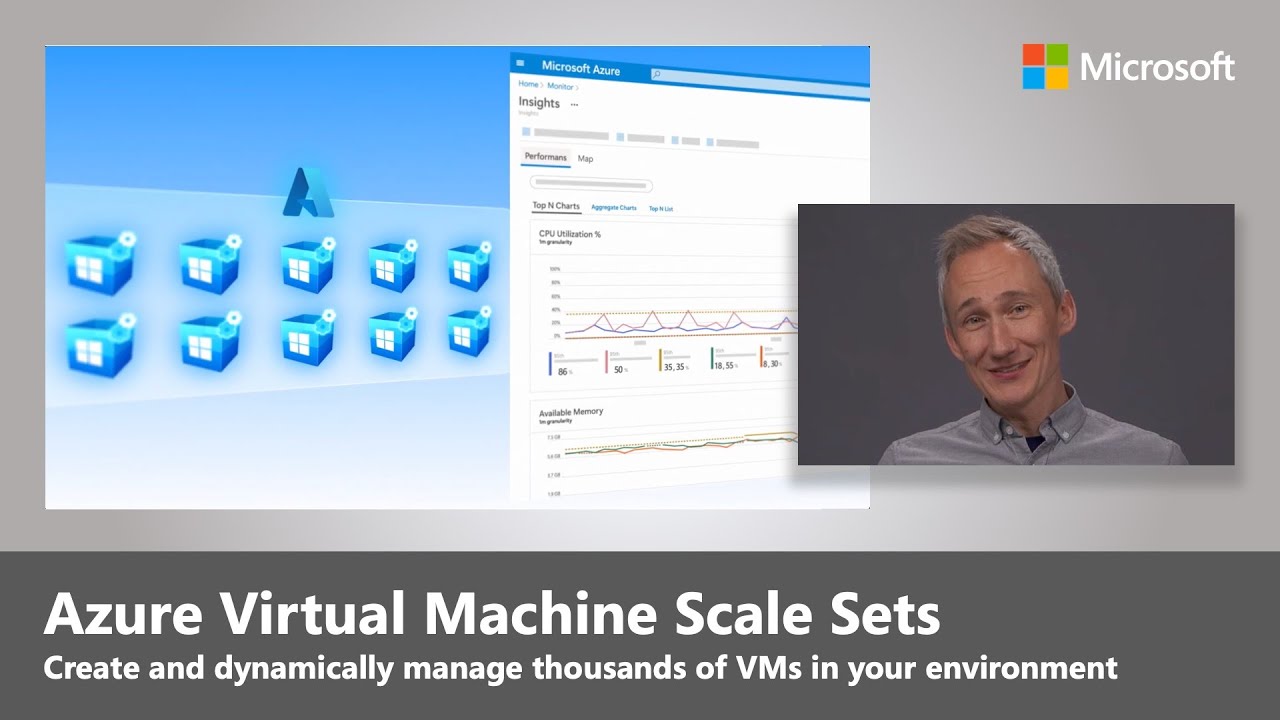
Diagrams courtesy of Microsoft Learn / Azure docs: virtual-machine-scale-sets/overview
Safe rollout and tradeoffs
- A scale-out event can take time and can fail if the image, quota, capacity, or startup configuration is wrong.
- Updating the image or configuration needs a controlled rollout strategy so healthy instances remain available.
- More instances increase cost. Set reasonable minimums and maximums, alert on unexpected scaling, and review the metric that triggered it.
Related
azure-vm · vm-sizes · availability-set · availability-zones · managed-disks · azure-vm-extension · load-balancer · application-gateway · northwind-traders-case-study
📘 Source: Microsoft Learn — Virtual Machine Scale Sets overview, checked 2026-09-16.
IaC
Bicep
What it is
Bicep is a domain-specific language (DSL) that lets you define Azure infrastructure declaratively as code, with an easy-to-read, concise syntax. It transpiles to ARM template JSON before deployment, so it is a friendlier authoring layer over the same Azure Resource Manager deployment engine.
Why it exists
ARM templates (JSON) are verbose, hard to read, and error-prone. Bicep gives you the same declarative infrastructure-as-code power — variables, parameters, modules, loops, conditions, dependencies — with syntax like a modern language, plus native tooling (formatter, linter, VS Code extension, preview of changes).
Key ideas
- Bicep files use the
.bicepextension and compile to ARM-template JSON. Azure tools can deploy Bicep directly, but Azure Resource Manager performs the deployment. - Declarative means the file states the desired resources and properties. It does not mean every unspecified resource will be removed: deployment scope and mode determine how Azure handles existing resources.
- Parameters make the same definition usable for dev, test, and production. Modules package reusable pieces, such as a standard network or storage account.
- Bicep can infer many dependencies from resource references, so it can order the deployment. Make any non-obvious dependency explicit and review the planned change.
Northwind example
Northwind keeps a Bicep definition for the ordering app’s resource group, App Service plan, web app, storage account, and monitoring. It passes different parameter values for test and production, reviews the change in version control, then deploys through Azure Resource Manager. A manual portal change can still create drift, so Northwind compares the live environment with its reviewed definition.
Common confusion
- Bicep is an authoring language; ARM is the Azure deployment and management service.
- Bicep is not an application-programming language and does not run Northwind’s ordering code.
- Re-running a deployment is not a substitute for understanding destructive changes, deployment mode, or a resource’s update behavior.
How it fits (diagram)
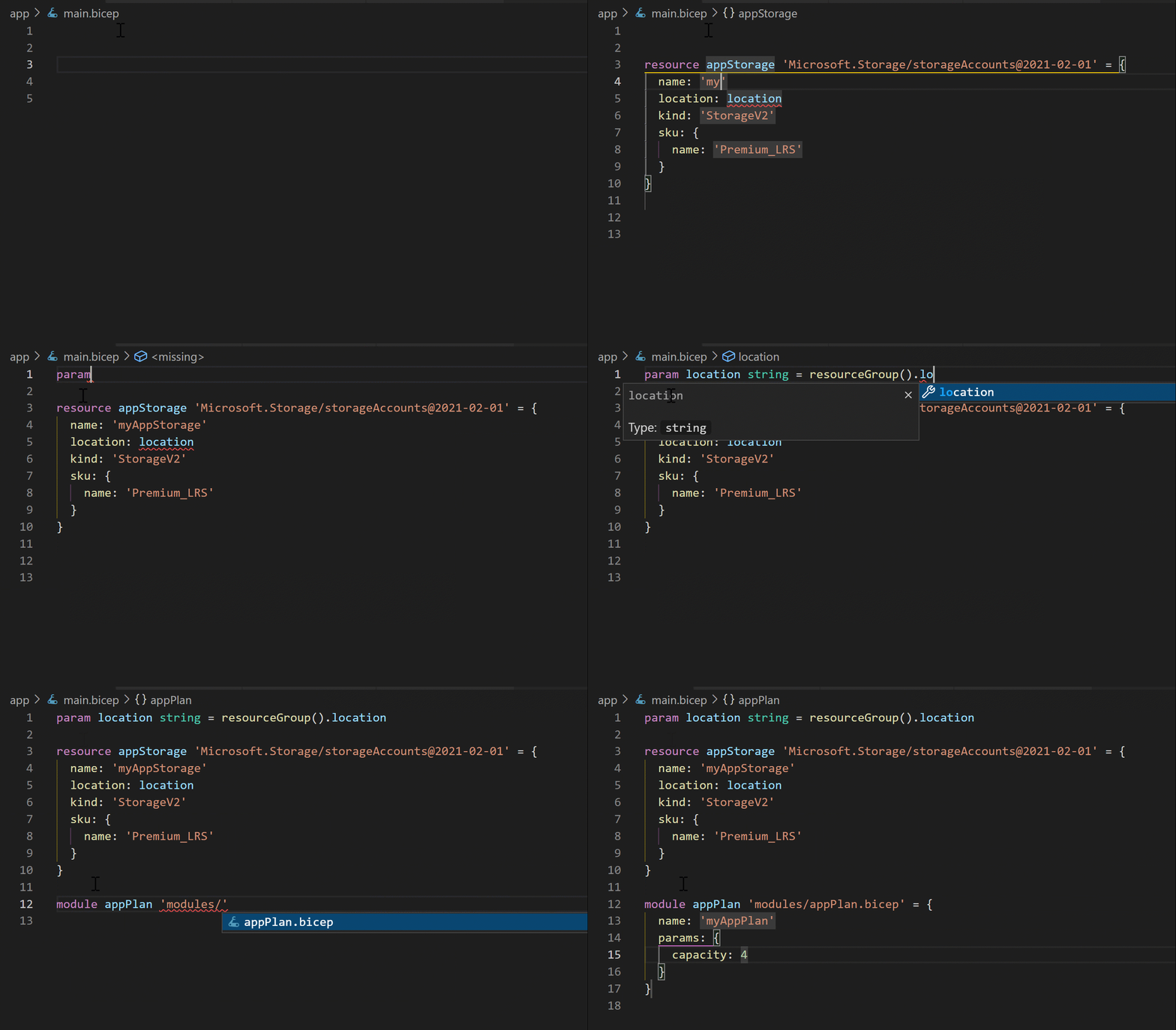
Diagrams courtesy of Microsoft Learn / Azure docs: azure-resource-manager/bicep/overview
Exam notes
- Bicep compiles to (maps 1:1 to) an ARM template — they are two views of the same deployment.
- Files end in
.bicep;az deploymenttargets resource-group or subscription scope. - In AZ-104 pop quiz: “declarative, readable language for Azure IaC” → Bicep (vs imperative CLI/portal); preferred over hand-writing JSON.
- Same deployment engine as ARM templates → idempotent diff-based apply.
Related
arm-template · infrastructure-as-code · azure-cli · azure-vm · northwind-traders-case-study
📘 Source: Microsoft Learn — Bicep overview, checked 2026-09-16.
Azure CLI
What it is
Azure CLI is Microsoft’s cross-platform command-line tool for working with Azure. Its commands start with az. You can run them interactively in a terminal or place them in scripts for repeatable administration and deployment tasks.
Why it exists
Clicking through a portal is useful for learning and investigation, but repeated work needs a recordable process. The CLI lets Northwind express a task as commands that can be reviewed, tested, versioned, and rerun with appropriate safeguards.
Key ideas
- Command groups reflect Azure tasks, such as
az group,az vm,az storage, andaz deployment. Useaz helpand current reference documentation rather than memorizing a long command list. - The CLI can run locally on Windows, macOS, and Linux, in a container, or in Cloud Shell. It is the tool, not the terminal program that hosts it.
- Authenticate with an appropriate method for the situation. An interactive human sign-in differs from a workload identity or service principal used by automation.
- The active subscription is part of command context. Set or verify it before any command that can change resources; a valid login can still point at the wrong subscription.
- JSON is the default output format. Other formats, such as a table for human reading, are available. Prefer machine-readable output for scripts and treat it as an interface that needs careful parsing.
How it fits (diagram)
Diagrams courtesy of Microsoft Learn / Azure docs: azure/cli/
Northwind example
Maya uses az to list the subscriptions she can access, deliberately selects Northwind production, and queries the resource group before a deployment. A pipeline uses a separate, least-privileged workload identity to deploy reviewed Bicep infrastructure. The team does not copy Maya’s interactive credentials into the pipeline or rely on a default subscription that might change between machines.
CLI versus portal and Cloud Shell
| Tool | Best starting use |
|---|---|
| Azure CLI | Scriptable, command-driven Azure work. |
| [[azure-portal | Azure portal]] |
| [[cloud-shell | Cloud Shell]] |
They use the same Azure authorization model. The chosen interface does not change what a user or workload is allowed to do.
Common confusion
- A command that succeeds has performed an Azure action; it is not merely a local preview unless its documentation says it is.
- CLI commands manage both control-plane resources and, in some cases, data-plane operations. Required permissions vary by command.
- A shell script is not automatically safe or idempotent. Handle existing resources, failures, retries, secrets, and the exact target scope deliberately.
Related
Path MOC · azure-vm · bicep · arm-template
Sources and re-audit
- Microsoft Learn — What is the Azure CLI?, checked 2026-09-16.
PaaS
Deployment slots
What it is
Deployment slots are named live environments for one App Service app, such as production and staging. Each has its own hostname. You can deploy a new version to a non-production slot, test it, then swap it into production so the previously running version becomes the non-production slot.
Why it exists
Shipping directly to the live site is risky. Slots let you deploy to staging, smoke-test with production settings, then swap traffic while App Service prepares the source slot. Swap back to restore the previous version if a regression appears. Long-running work can be abandoned when the former production workers recycle, so applications must tolerate interruption.
Key ideas
- A slot has its own deployment and hostname. Some configuration swaps with the application; deployment slot settings stay with the slot. This distinction is critical for production-only secrets and endpoints.
- A swap warms and redirects the application environments according to App Service’s slot behavior. It can reduce release disruption, but it does not test your application or make a database schema change reversible.
- Swapping back can return the previous application version to production, provided the wider release has not made incompatible changes. Test rollback, health checks, and long-running work before relying on it.
- Slot count and availability depend on the App Service plan tier. Confirm the target plan’s current limits before using slots in a release design.
Northwind example
Northwind deploys a new ordering API version to staging.northwind.... It runs a smoke test that creates a test order without charging a customer. The production payment credential is configured as a slot setting so it stays with production during the swap; staging uses a safe test credential. When the checks pass, Northwind swaps staging into production. If a defect appears, it can swap back—but only after confirming that the deployment did not perform an irreversible data migration.
Common confusion
- A slot is not a separate subscription or full disaster-recovery environment. It shares the parent app’s broader service context.
- A slot swap is not automatically zero risk or zero downtime for every application protocol, connection, background job, and data change.
- Do not put production secrets in a non-sticky setting and assume the swap will keep them in production.
How it fits (diagram)
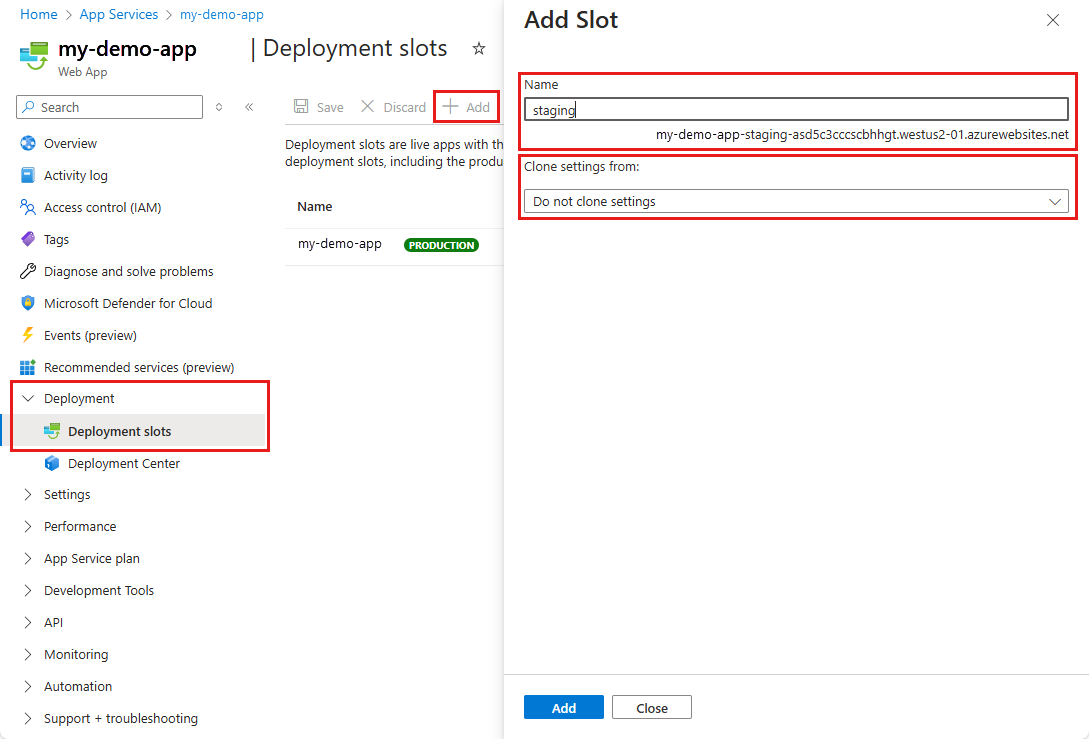
Diagrams courtesy of Microsoft Learn / Azure docs: app-service/deploy-staging-slots
Release checklist
Use representative tests, define which settings are slot-specific, prepare a rollback decision, and coordinate any database or external-service change. Monitor the production app after the swap through Application Insights.
Related
app-service · app-service-plan · application-insights · key-vault · northwind-traders-case-study
📘 Source: Microsoft Learn — Set up staging environments in Azure App Service, checked 2026-09-16. Re-audit when slot availability, swap behavior, or application-restart guidance changes.
Containers
Azure Kubernetes Service (AKS)
What it is
Azure Kubernetes Service (AKS) is Azure’s managed Kubernetes service for deploying and managing containerized applications. Kubernetes coordinates many containers across compute resources: it schedules pods, replaces failed pods, scales workloads, and exposes services according to the configuration a team supplies.
Why it exists
When a workload needs coordinated services, deployments, scaling, service discovery, and repeated operational patterns, Kubernetes can help. AKS shifts substantial Kubernetes platform work to Azure, but it does not remove the need to design, secure, monitor, and operate the applications running on the cluster.
Key ideas
- AKS creates and manages a control plane. Workloads run in pods on nodes. A node pool groups the compute nodes for a cluster.
- AKS Automatic uses Azure-managed production defaults for nodes, scaling, security, monitoring, and upgrades. AKS Standard gives teams more direct control of cluster configuration and node pools. Choose the mode from actual platform-control needs.
- Kubernetes objects such as Deployments, Services, Ingress, and namespaces describe desired workload state and boundaries. They are configuration the team must understand and maintain.
- AKS integrates with Azure networking, storage, and identity. For example, pods can use persistent volumes backed by Azure Disks or Azure Files, and workloads can pull images from ACR.
- Scaling can involve pod autoscalers and node provisioning or autoscaling. A configured scaler responds to its configured signals; it does not guarantee that every workload can scale safely.
- Pricing, uptime guarantees, and included features vary by AKS mode and pricing tier. Verify the current offering rather than relying on an old blanket “control plane is free” statement.
How it fits (diagram)
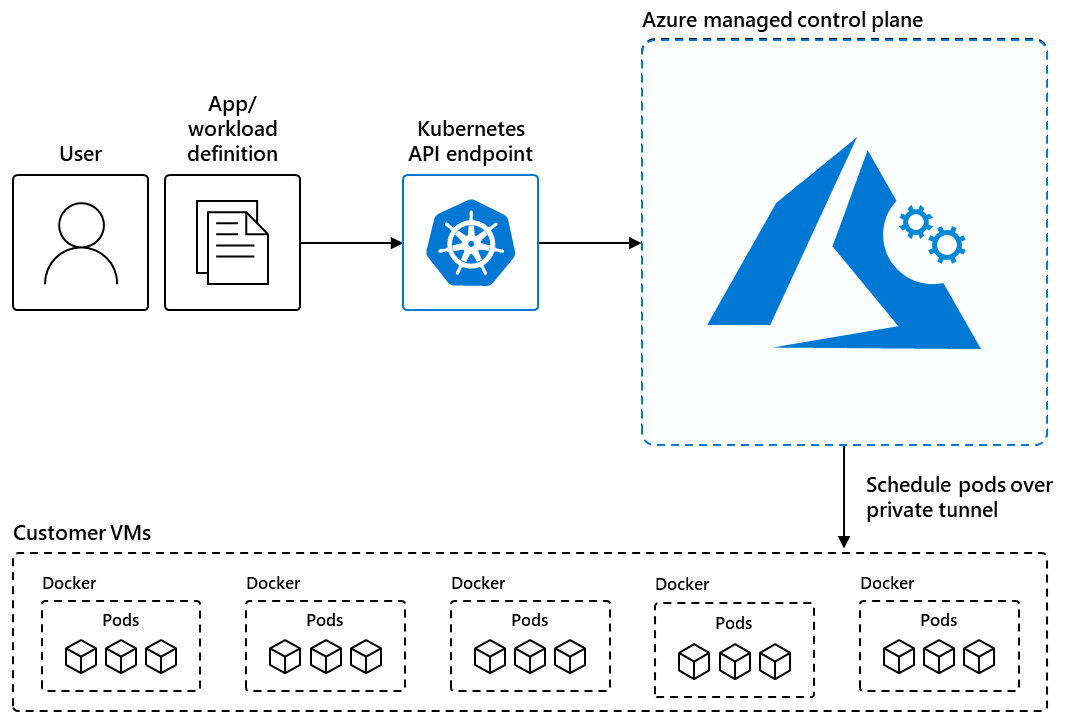
Diagrams courtesy of Microsoft Learn / Azure docs: aks/intro-kubernetes
Northwind example
Northwind’s ordering platform has several containerized services: checkout, catalogue, recommendations, and background workers. It uses AKS Automatic to start from Azure’s managed defaults, then defines deployments, health checks, resource limits, identities, and monitoring for each service. When checkout traffic rises, configured Kubernetes scaling can add capacity. Luis still owns application behavior, safe rollout settings, secrets, and the decision of whether a failed dependency should make a pod ready to serve traffic.
AKS versus ACI
| Need | Start by considering |
|---|---|
| Coordinated, multi-service container platform with Kubernetes capabilities | AKS |
| One simple container or small related container group | [[aci |
| Small event-driven code unit without managing containers | [[azure-functions |
Common confusion
- AKS is managed Kubernetes, not “no operations.” Someone still owns workload manifests, release safety, identity, networking, observability, and incident response.
- A healthy Kubernetes node does not prove an application is healthy. Define meaningful readiness, liveness, and monitoring signals.
- Kubernetes authorization and Azure resource authorization are related but distinct. Use the appropriate identity and RBAC model for each boundary.
Related
Path MOC · aci · acr · azure-functions
Sources and re-audit
- Microsoft Learn — What is Azure Kubernetes Service (AKS)?, checked 2026-09-16.