AZ-104: Prerequisites & Core Architecture
Resource group
What it is
A resource group is a logical container for Azure resources that share a lifecycle: you expect to deploy, update, and eventually retire them together. A resource group belongs to one subscription. Most application resources belong to one resource group, although Azure also supports specific resource types at subscription, management-group, or tenant scope.
Why it exists
Instead of managing every resource in isolation, you group the resources of an application/lifecycle into one container so you can deploy, update, delete, monitor, and secure them as a unit — and apply RBAC and Azure Policy at that scoped boundary.
Key ideas
- One place, one owner — a resource can be in only one RG (but can later be moved between RGs/subscriptions).
- RG location ≠ resource locations. The RG’s region is where the RG’s metadata is stored; the resources inside it can be in any region. This is a classic trap.
- Lifecycle unit — deleting a RG deletes all resources inside it (a boundary of operation, not of geographic data residency).
- Deployment scope — ARM deployments and templates/Bicep target a RG.
- Group by lifecycle + environment, not by resource type (that’s a common anti-pattern — mixing all VMs in one RG complicates lifecycle).
Northwind example
Northwind puts the ordering web app, its storage account, and its monitoring resources in orders-production because the team deploys and retires that solution together. It puts a shared network or a database with a different owner and retirement schedule in another resource group, even if the application connects to it. Connections can cross resource-group boundaries.
Deleting orders-production would delete its resources. That makes the group a convenient lifecycle boundary, but a dangerous one to use as a casual folder. Before deleting it, Northwind must understand every contained resource and retain backups where recovery is required.
Common confusion
- The resource group’s location stores resource-management metadata. It does not force every contained resource or its customer data into that region.
- A resource group is not an availability zone, virtual network, or security boundary. RBAC and Policy can be scoped to it, but networking and resiliency need their own design.
- Tags on a resource group do not automatically flow to its resources.
How it fits (diagram)
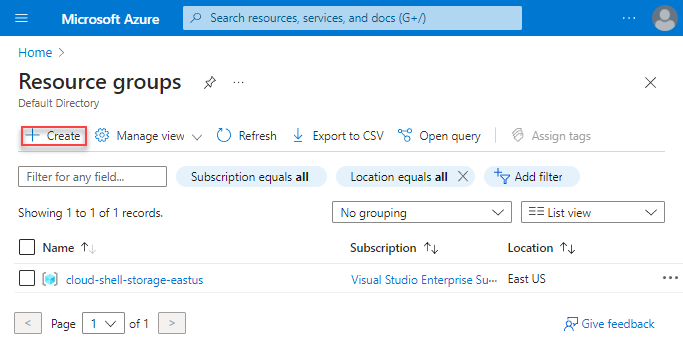
Diagrams courtesy of Microsoft Learn / Azure docs: azure-resource-manager/management/manage-resource-groups-portal
Exam notes
- RG location is where metadata sits — the RG itself is not a physical place and stores no resources’ data.
- Deleting a RG deletes everything inside it.
- Move of a resource across RGs/subscriptions is possible but has constraints (recreate vs move, some resources can’t move).
- Use RG to scope RBAC assignments and policies at an application boundary.
Related
Path MOC · subscription · arm · scope · resource-tags · azure-policy
📘 Source: Microsoft Learn — Resource Group
Management groups
What it is
Management groups are containers above Azure subscriptions. They form a tree in which governance settings can flow down to child management groups, subscriptions, resource groups, and resources. They organize the management of subscriptions; they do not hold an application’s VMs or data.
Think of a management group as a company policy folder, not a project folder. A rule placed in a parent folder reaches every eligible item in its child folders.
Why it exists
A large organization may have subscriptions for production, testing, shared networking, and different business units. Repeating the same safety rule in each subscription is slow and easy to get wrong. A management group gives a shared governance scope above them.
How the hierarchy works
Every Microsoft Entra directory has one built-in top-level root management group. All management groups and subscriptions in that directory fold into its one hierarchy. A management group or subscription can have one parent, while a management group can have many children. The tree can have up to six management-group levels below the root (the root and subscription levels do not count).
The main inheritance rule is simple: a policy assignment or Azure RBAC role assignment at a management-group scope applies to the scopes below it. This makes the chosen level powerful. A broad role assignment can grant access across many subscriptions; a broad policy can constrain every descendant resource.
Northwind example
Northwind has a root management group and creates two child groups:
Tenant root group
└── Northwind
    ├── Production
    │   └── northwind-production subscription
    └── Sandbox
        └── northwind-lab subscription
Maya assigns a policy to Production that allows only Northwind’s approved deployment regions. The policy reaches the production subscription, its resource groups, and its resources. She does not assign it to Sandbox, where Luis needs room to learn. Priya can inspect production costs in the production subscription; moving the subscription under a different management group would change which inherited policies and roles apply, but would not move its resources to a different region.
Choose the right boundary
| Need | Prefer | Why |
|---|---|---|
| One rule for several subscriptions with the same compliance need | Management group | Assign once and inherit down. |
| Separate invoice, quota, or strong environment isolation | subscription | A subscription is a billing, quota, and access boundary. |
| Deploy and retire one application’s components together | resource-group | A resource group is a lifecycle container. |
| Label resources for search or cost reporting | [[resource-tags | Tags]] |
Guardrails and failure modes
- Keep the tree shallow and organize it around shared governance needs, not a copy of every department chart. Deep trees make inherited settings hard to diagnose.
- Be especially cautious at the root. A policy or role there applies across the directory hierarchy. Microsoft recommends placing only must-have assignments there.
- All subscriptions in one management-group hierarchy trust the same Microsoft Entra tenant. A management group does not join unrelated tenants.
- A management group is not a billing account or a resource group. It can help govern costs, but billing capabilities depend on the subscription agreement and service.
How it fits (diagram)
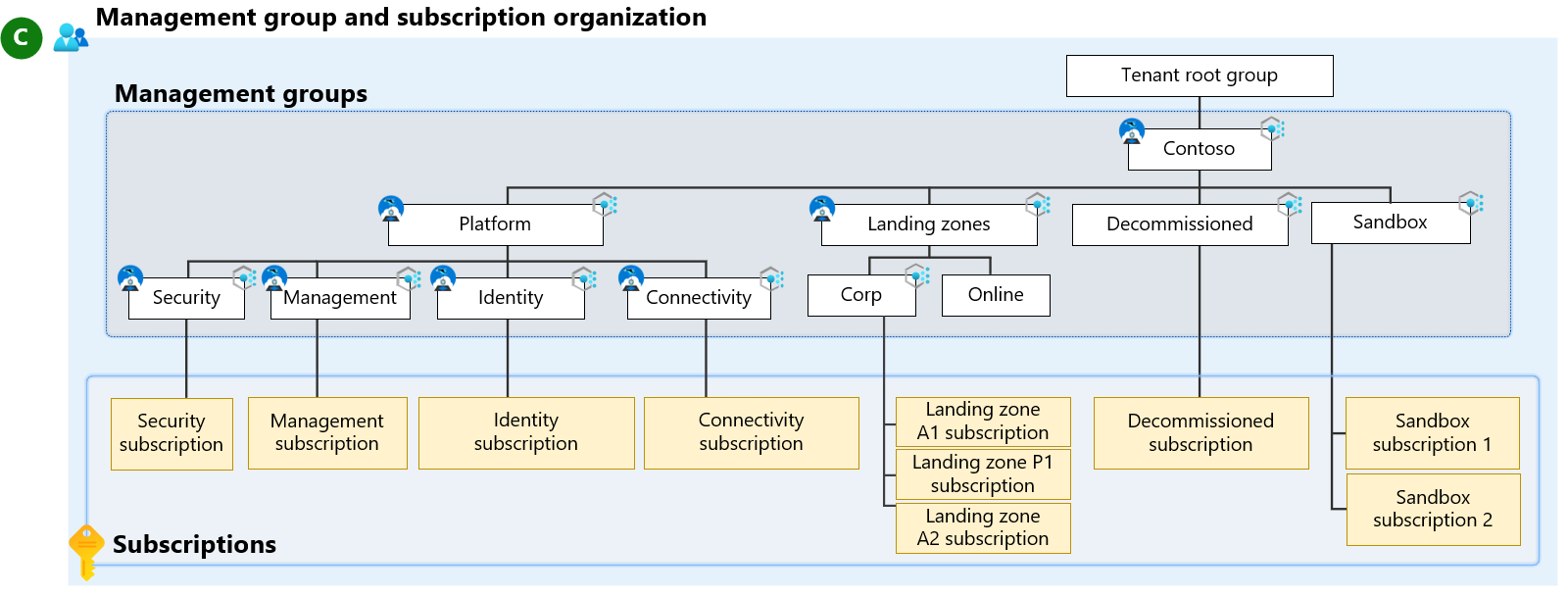
Diagrams courtesy of Microsoft Learn / Azure docs: governance/management-groups/overview
Where it appears in the route
Read azure-management-hierarchy first, then practise inheritance in AZ-104 foundation.
Related
azure-management-hierarchy · subscription · resource-group · scope · azure-policy · rbac · northwind-traders-case-study
Sources and re-audit
- Microsoft Learn — What are Azure management groups?, checked 2026-09-16.
- Microsoft Cloud Adoption Framework — Management groups, checked 2026-09-16.
Azure Resource Manager (ARM)
What it is
Azure Resource Manager (ARM) is Azure’s deployment and management layer, also called the control plane. When you use the portal, Azure CLI, PowerShell, an SDK, Bicep, or an ARM template to manage supported Azure resources, the request goes through ARM to the appropriate Azure resource provider.
Why it exists
Without a single control plane, each tool would talk to each resource type in a different, inconsistent way. ARM gives Azure a consistent, centralized API for management and enforces authentication + authorization (RBAC) on every request, plus declarative deployment so you can describe the end-state instead of the step-by-step commands.
Control plane versus data plane
The control plane changes the resource itself: create a storage account, set a tag, configure a network, or assign a role. ARM handles those management operations. The data plane works with the service’s contents: read a blob, send a queue message, or connect to a VM’s operating system. Data-plane access goes to the service endpoint and often needs its own permission or authentication method.
For example, someone might have permission to create a storage account through ARM but lack the data-plane role needed to read files in it. “I can see the resource in the portal” does not prove “I can read its data.”
How it works
- ARM authenticates and authorizes management requests, then passes them to a resource provider such as
Microsoft.Compute,Microsoft.Network, orMicrosoft.Storage. - A declarative ARM template or Bicep file states the intended resources and settings. ARM works out dependencies and applies the deployment.
- The portal, CLI, PowerShell, REST API, and SDKs are different ways to send management requests; they are not separate Azure environments.
Northwind example
Northwind uses Bicep to describe its ordering web app, storage account, and monitoring. Luis sends that deployment through ARM. ARM checks his RBAC access and applicable Policy before a resource provider creates or updates the resources. Later, the web app reads an order file from storage through the storage data plane; that access needs a suitable data permission too.
Common confusion
- ARM is not the application runtime and does not carry ordinary customer web traffic to Northwind’s site.
- ARM templates and Bicep manage infrastructure. They do not replace application source code or a data-backup plan.
- Resource providers expose Azure resource types. Registering or using a provider is not the same as assigning a person permission to manage its resources.
How it fits (diagram)
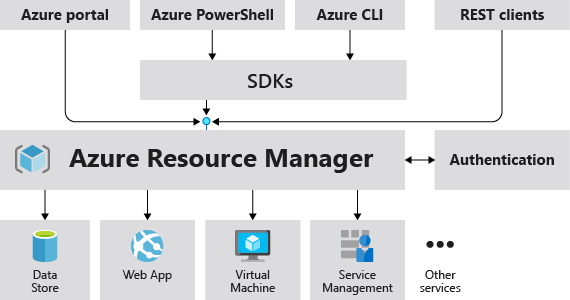
Diagrams courtesy of Microsoft Learn / Azure docs: azure-resource-manager/management/overview
Exam notes
- ARM = control plane; the resource = data plane. Know which operations hit which.
- RBAC is enforced by ARM at request time — an allowed caller still needs data-plane permissions for the data inside the resource.
- Templates let ARM deploy declaratively, idempotently, and in dependency order.
- Resource providers must be registered for the subscription before some resource types can be created.
Related
azure-management-hierarchy · arm-template · bicep · resource-group · scope · rbac · azure-policy · azure-cli · northwind-traders-case-study
📘 Source: Microsoft Learn — What is Azure Resource Manager?, checked 2026-09-16.
Azure region
What it is
An Azure region is a geographic area containing one or more datacenters connected through Azure’s network. When you create a regional service, you choose a region such as eastus, westeurope, or uksouth. That choice affects the service’s location, what features are available, latency to users, pricing, and sometimes legal or organizational requirements.
Why it exists
You choose a region to place a workload near users or connected systems, to meet data-residency needs, and to use services available there. One subscription can contain workloads in many regions. Not every Azure service is regional; some are global, and service availability differs by region.
Region, zone, geography, and pair
- A zone is a separate physical-fault boundary inside a zone-enabled region. A region is not itself a zone.
- A geography is a market or area containing one or more regions and can matter for residency and compliance commitments.
- Many regions have a region pair, but a pair is not an automatic disaster-recovery solution. Cross-region replication, failover, backups, and the application’s behavior must be configured service by service.
- A sovereign cloud is a separately operated cloud environment for particular regulatory or government needs; it is not merely another public-cloud region.
How it fits (diagram)
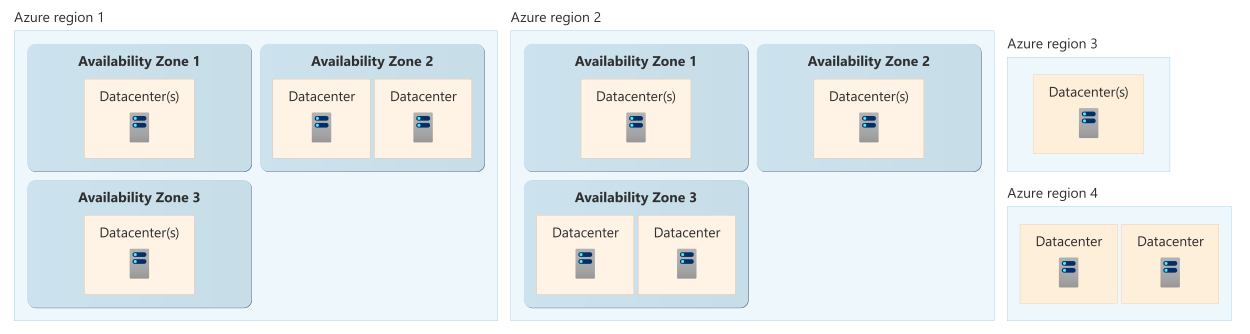
Diagrams courtesy of Microsoft Learn / Azure docs: reliability/availability-zones-overview
Northwind example
Northwind chooses a region near its customers and warehouse systems after checking that App Service, storage, and its required reliability options are supported there. Its production subscription may also contain monitoring or recovery resources elsewhere. If Northwind later needs to serve another continent or survive a full regional outage, it designs and tests a multi-region pattern; selecting a region pair alone does not copy its application.
Common confusion
- A resource-group location is not the same as the location of every resource inside it.
- A region can contain zones, but a region with zones does not automatically make every resource zone-resilient.
- Changing a workload’s region is usually a service-specific move or redeployment, not a simple rename. Check the supported migration path before planning it.
Related
availability-zones · subscription · resource-group · northwind-traders-case-study
📘 Sources: Microsoft Learn — Azure regions and geographies and What are availability zones?, checked 2026-09-16.
Availability zones
What it is
An availability zone is a physically separate group of one or more datacenters inside one Azure region. Zones have independent power, cooling, and networking. Think of a region as a city-sized service area and zones as separate, well-connected buildings in that area: a serious problem at one building need not stop the others.
Many, but not all, Azure regions have availability zones. A zone-enabled region commonly exposes logical labels such as 1, 2, and 3. Those labels are not a global street address: the same label can map to a different physical zone in another subscription.

Microsoft diagram: What are availability zones?
Why it exists
A single virtual machine or data copy can fail with the datacenter that hosts it. Spreading independently usable parts of a workload across two or more zones reduces that single-datacenter risk while keeping the workload in one region. It does not protect against a whole-region outage, a bad software release, deleted data, or an incorrectly configured identity.
How it works
Azure services support zones in one of three ways:
- A zonal resource goes into one zone you select. It is isolated from other zones but is not, by itself, resilient to its own zone failing.
- A zone-redundant resource is distributed or replicated across multiple zones by the Azure service. The service manages the cross-zone placement and failover.
- A regional (nonzonal) resource has no zone choice. Azure places it within the region; do not assume it survives a zone failure.
For zonal resources, the customer must build the pattern: multiple instances in different zones, a way to route traffic to a healthy instance, and a plan for state and data. The exact choices depend on the service and its available SKUs. Check the service reliability guide and region support before treating a design as zone-resilient.
Northwind example
Northwind runs two copies of its ordering application in one zone-enabled region: one VM in zone 1 and another in zone 2. A load balancer sends shoppers only to the healthy copy. Its order data uses zone-redundant storage. If zone 1 loses power, the zone-2 application and the replicated data can continue serving orders.
This is still a single-region design. If the whole region is unavailable, Northwind needs a separate multi-region recovery design, plus backups for accidental deletion or corruption.
Compare the close terms
| Term | Protects mainly against | What you must remember |
|---|---|---|
| Availability zone | A failure affecting one zone | It is a physical-fault boundary within a region. |
| zone-redundant | A single-zone failure | Azure spreads a supported service across zones. |
| availability-set | Some hardware and planned-maintenance failures within a datacenter | It is not a substitute for cross-zone placement. |
| Region pair or multi-region design | A regional outage | It requires a separate design and failover plan. |
| Backup | Deleted, corrupted, or historical data | Replication does not undo a bad write. |
Tradeoffs and failure modes
- Cross-zone traffic, supported SKUs, and replicated components can change cost or latency; test the actual workload.
- Putting every component in different zones can still fail if the database, DNS, credentials, or traffic-routing layer is a single point of failure.
- A one-zone VM is zonal, not highly available. A region that has zones does not make every deployed resource zone-resilient automatically.
- Zone numbers should not be compared across subscriptions without checking the subscription-specific mapping.
Where it appears in the route
Start with AZ-900 architecture. Then use AZ-104 compute to choose service-specific resiliency settings.
Sources and re-audit
- Microsoft Learn — What are availability zones?, checked 2026-09-16.
- Microsoft Learn — Azure reliability guides by service, checked 2026-09-16.
Related
zone-redundant · azure-region · availability-set · virtual-machine-scale-set · redundancy-lrs-zrs-grs · azure-backup
Azure portal
What it is
The Azure portal is Azure’s browser-based management console at portal.azure.com. It is one way to create, configure, inspect, and monitor Azure resources; other tools include the Azure CLI, PowerShell, and Azure Resource Manager APIs.
Why it exists
The portal makes Azure discoverable through menus, guided creation screens, search, and resource-specific pages. It is especially helpful for learning, inspection, and one-off changes. It is a client of the Azure management plane, not a separate place where permissions or resources exist.
Key ideas
- Global controls include search, directory/subscription switching, Cloud Shell, notifications, settings, and support. The context matters: check the active directory and subscription before making a change.
- A resource page is contextual. Its menu and command bar show actions for the selected service or resource, such as starting a VM or opening logs.
- The portal uses the same authorization model. If Azure RBAC denies an action, using the portal rather than CLI will not bypass that decision. Changes still appear in the Activity Log.
- A click is a configuration change. Guided screens can create several related resources. Review the subscription, region, name, network options, and cost implications before selecting Create.
Northwind example
Priya opens the portal to inspect the cost of Northwind’s production subscription. She first confirms she is in the production directory and subscription, then opens Cost Management. Maya uses the same portal to view an order VM’s Activity Log after an outage. Neither person receives extra access simply by using the portal: Priya can see cost data and Maya can perform only the actions their assigned roles allow.
How it fits (diagram)
Diagrams courtesy of Microsoft Learn / Azure docs: azure/portal/azure-portal-overview
Exam notes
- The portal is a management client, not an authorization bypass or a separate resource model.
- Confirm directory and subscription context before working.
- The Activity Log records management events regardless of whether they came from the portal, CLI, or another management client.
Related
azure-cli · cloud-shell · arm · subscription
📘 Source: Microsoft Learn — Azure Portal